The Complete Grok Bot Guide (2026 Illustrated Edition)
Take Grok Bot from zero to shipping work on a schedule: 10-minute quickstart, subscription (incl. a CNY CDK route), cloud computer and takeover, Skill / Teach / Routine, approvals and security, 8 scenario prompt templates, and a troubleshooting cheat sheet.
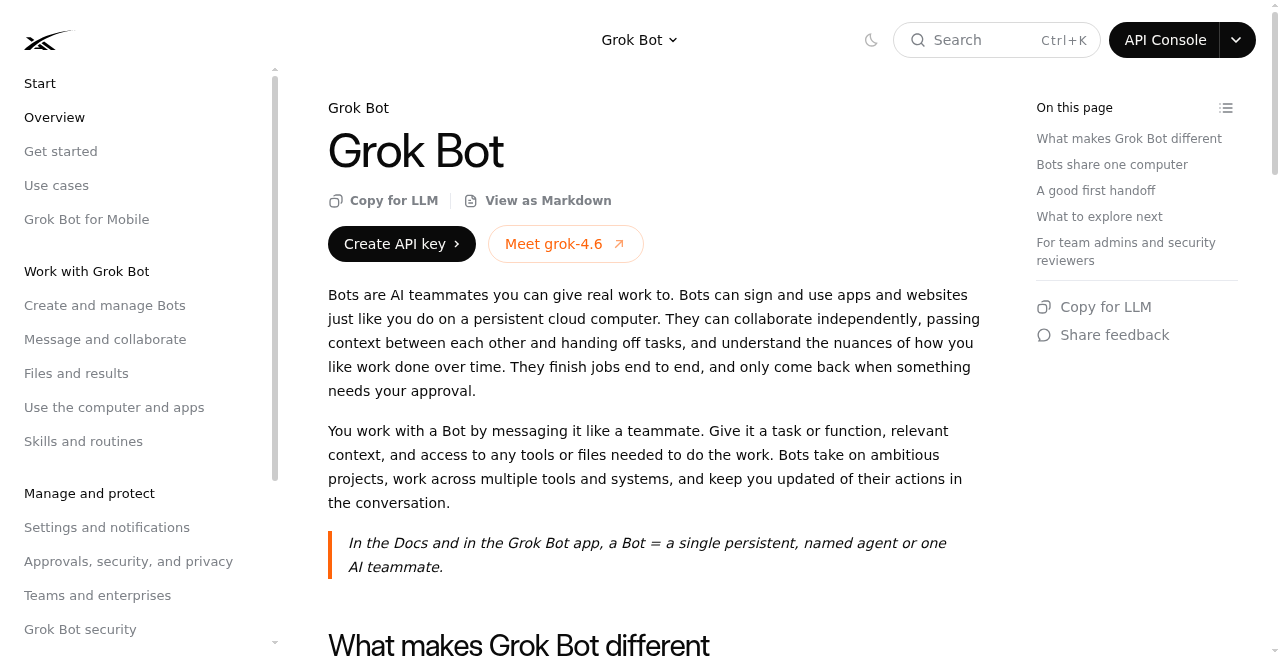
The Complete Grok Bot Guide (2026 Illustrated Edition)
Updated: 2026-09-07 For: anyone who wants to take Grok Bot from zero to "it ships work on a schedule" Sources, in order of authority: official docs at docs.x.ai/grok-bot; eligibility and pricing per x.ai/bot and in-app billing Screenshots: Flavio Copes' hands-on walkthrough, public logs from awesome-grok-bot, official doc pages; hosted on
upload.maynor1024.live
TL;DR (30 seconds)
Grok Bot is not grok.com chat, and it's not Grok Build either. It's an AI coworker running on a cloud computer: it can log into websites, click through interfaces, write files, and work on a schedule. Close your laptop and it keeps going.
| Product | One-liner |
|---|---|
| Grok chat | Q&A and generation |
| Grok Build | A CLI / coding agent that writes code |
| Grok Bot | An AI coworker with a computer: logs in, operates, schedules, collaborates |
Not subscribed yet? For CNY orders see Chapter 3 · How to Subscribe (purchase page: https://momoai.dadoudou117.com/buy/9 , SuperGrok 1-month CDK).
There's only one chain that reliably works:
Narrow-scope Bot → run it manually once → save as a Skill → Test run → then turn on a Routine
Sending messages, making payments, deleting data, changing production: always put those behind approval. Multiple Bots are not security isolation — they share one cloud computer's logins and files.
Table of Contents
- 10-Minute Quickstart
- What It Is, and How It Differs
- How to Subscribe and Activate
- Eligibility, Platforms & Privacy
- Install & Sign In
- Core Concepts
- Creating a Bot and Writing a Good Profile
- How to Delegate a Task
- Cloud Computer vs. Your Computer
- Plugins / Connectors
- Files and Deliverables
- Skill · Teach · Routine
- Approvals and Security
- Multiple Bots, Group Chats & Sharing
- Scenario Prompt Templates
- UI Cheat Sheet & Troubleshooting
- FAQ
- Appendix: Sources and Image Links
1. 10-Minute Quickstart
Do it in this order — it beats reading every concept first.
Step 1 · Install and sign in
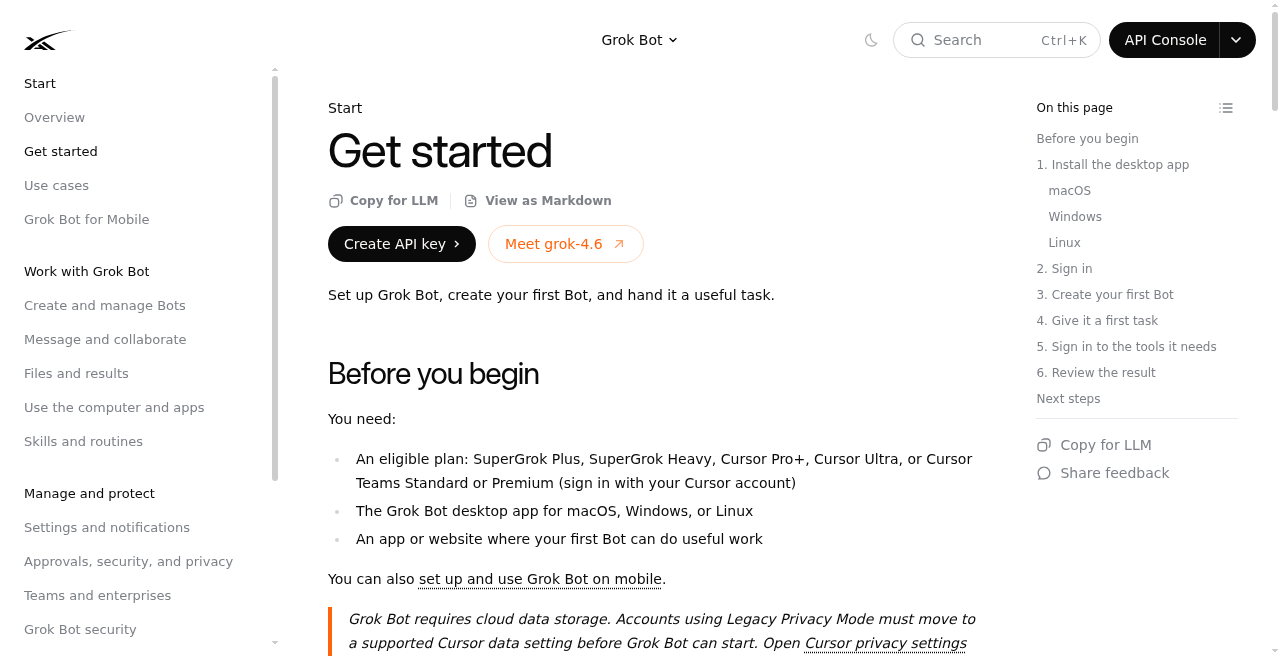
Download the desktop app from x.ai/bot (macOS / Windows / Linux) and sign in with your Cursor account. Org accounts go through SSO.
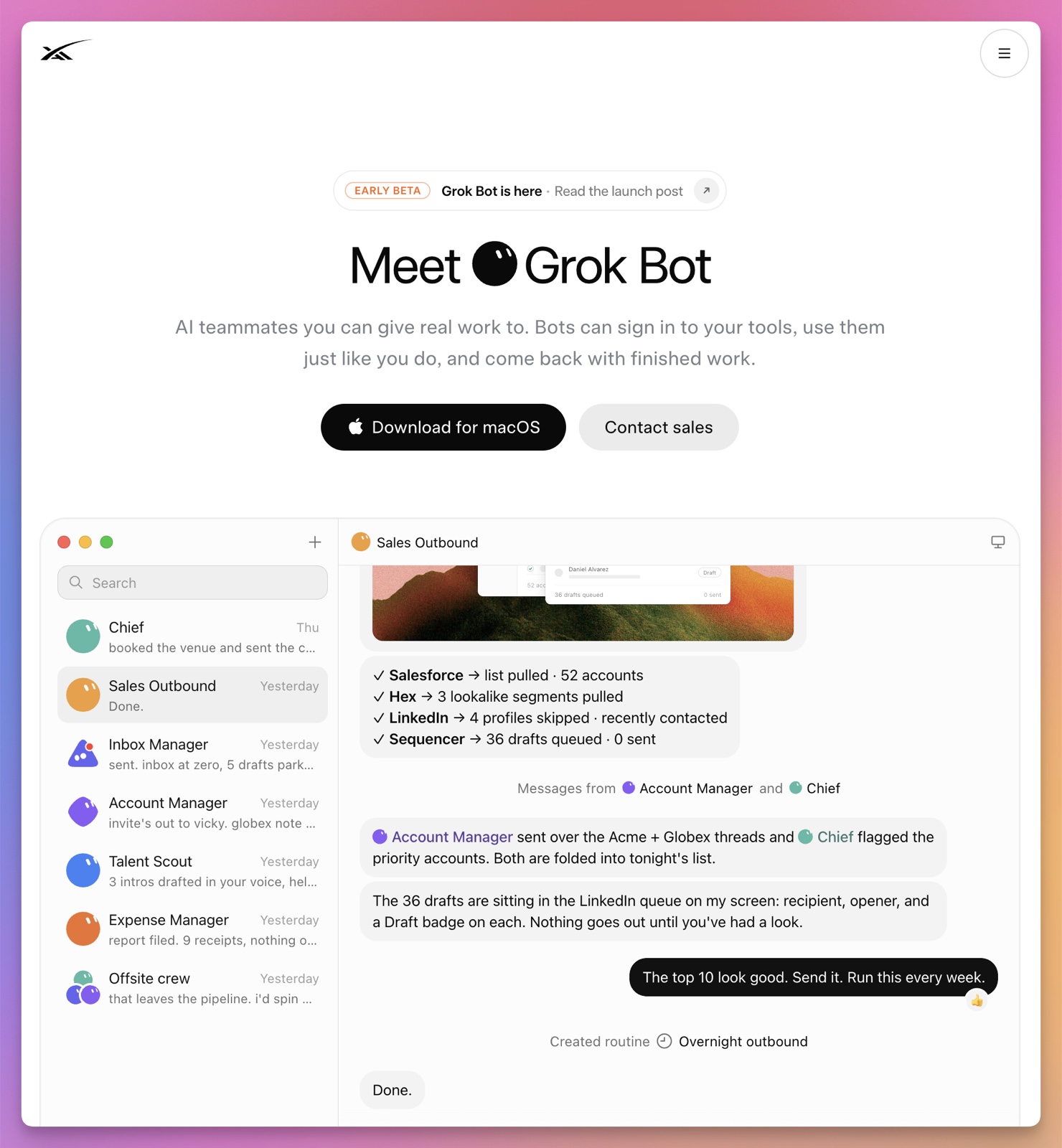
Product / download entry point
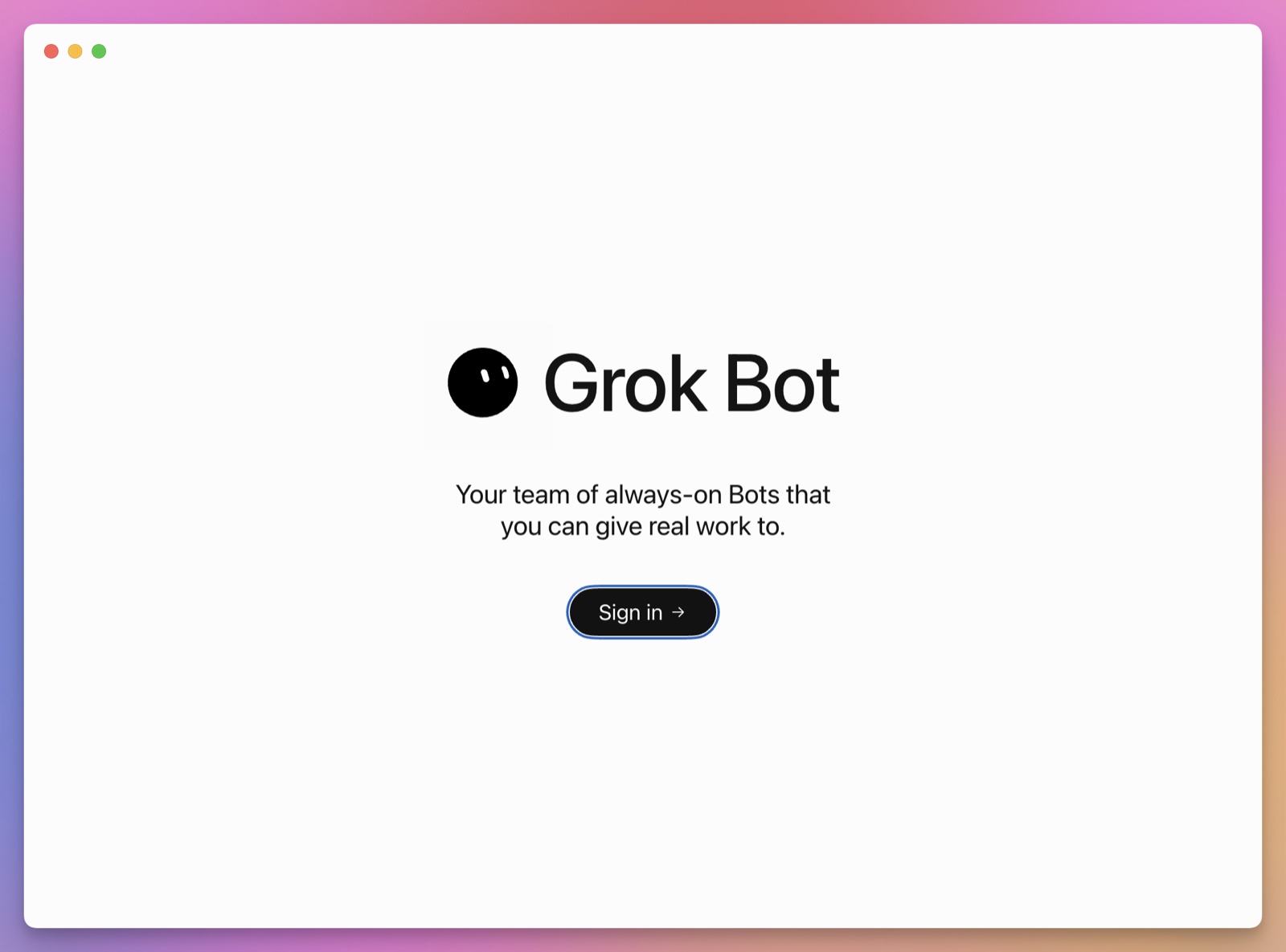
First screen: Sign in with Cursor
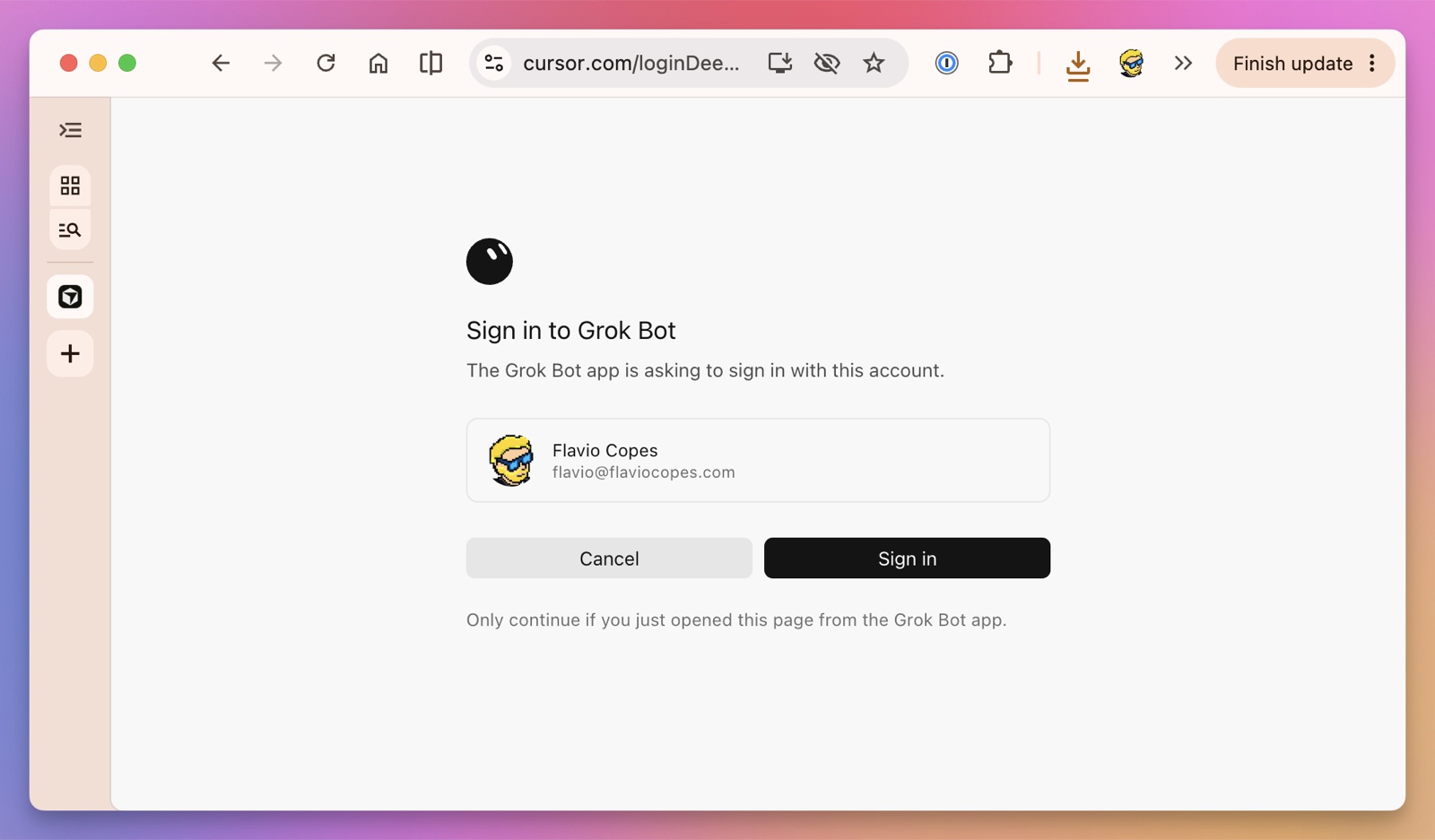
The account you confirm authorization with, in the browser
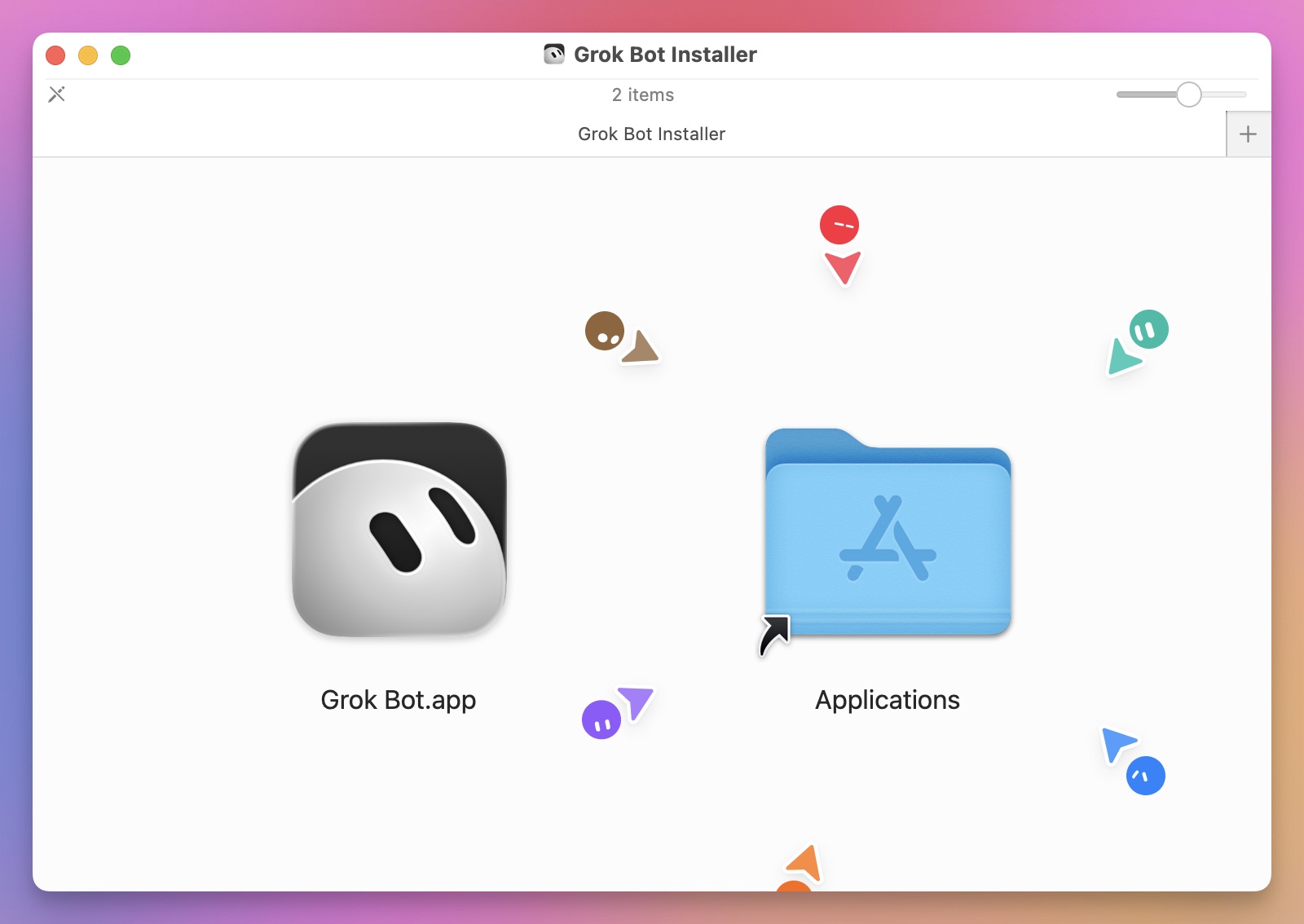
macOS: open the dmg, drag it into Applications.
Step 2 · Build exactly one narrow-scope Bot
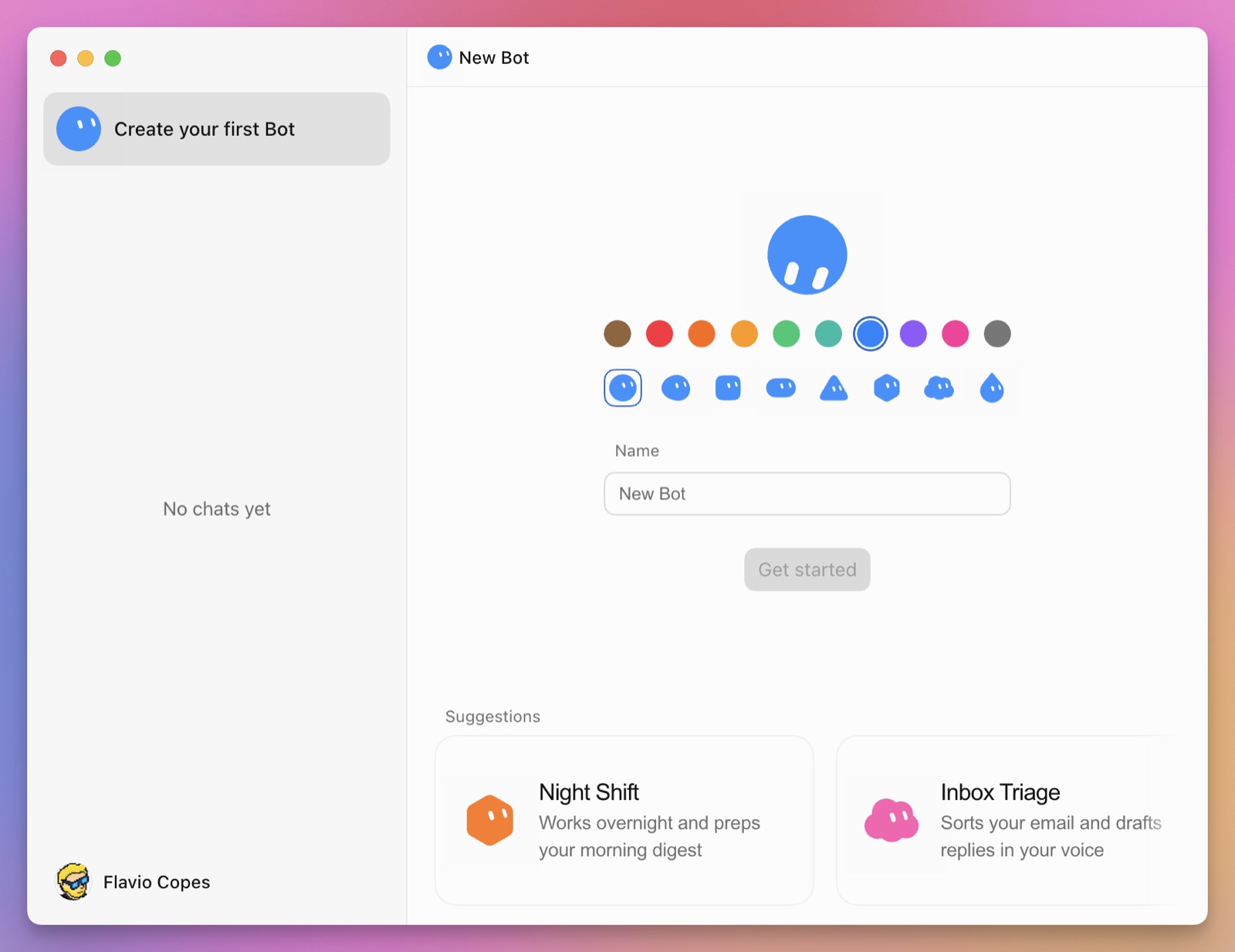
New or Cmd/Ctrl+N → Create new agent → edit the Profile.
- Name: anything you'll recognize
- Title: a one-line job description
- Description: spell out results, sources, prohibitions, approval boundaries
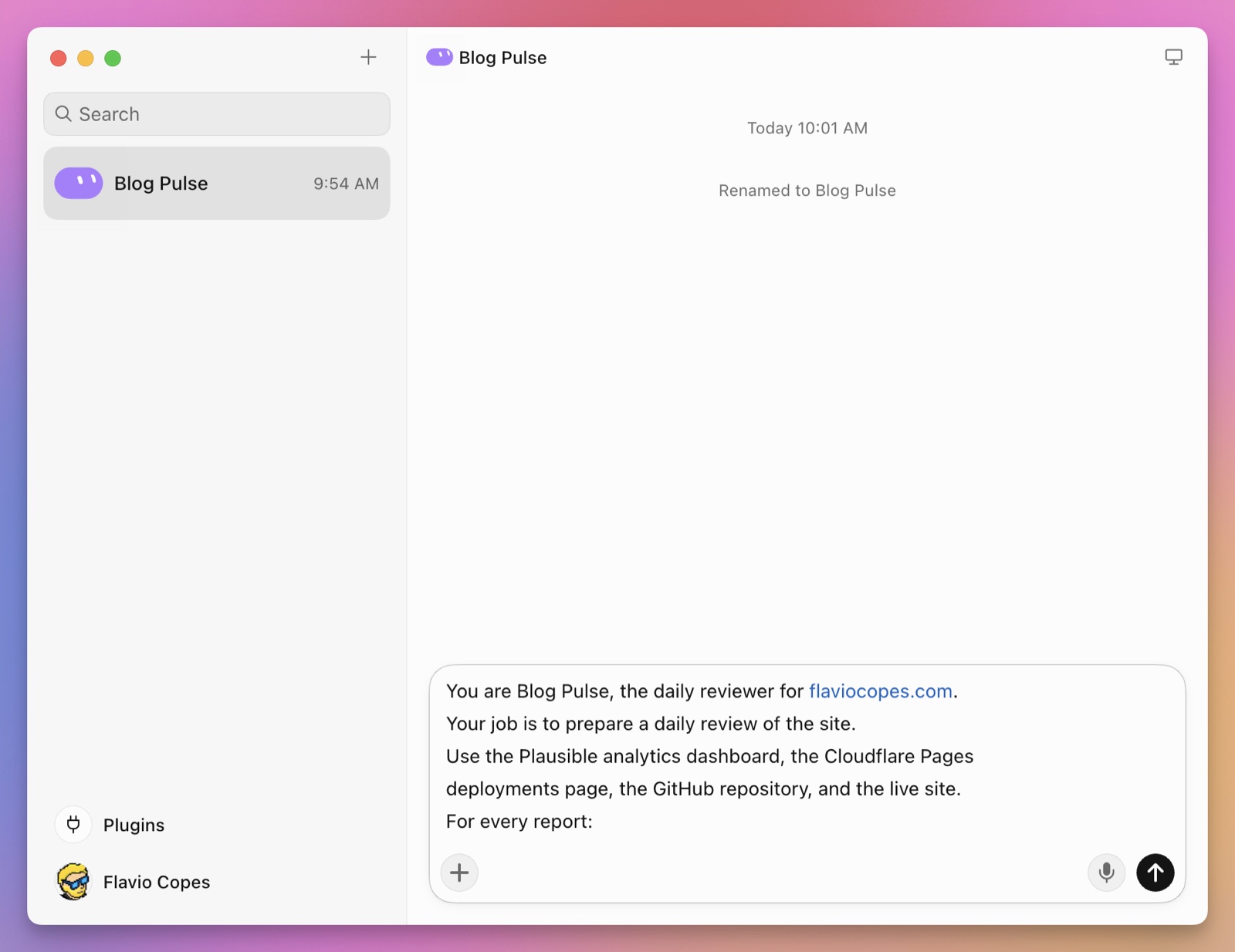
Put "how to do it" in the description; leave "what to do this week" to your messages
Step 3 · Delegate one real task using the 5 elements
- Outcome: what "done" means
- Sources: which apps / sites / files to use
- Constraints: what it must not do
- Deliverable: what format to hand back
- Review point: where to stop and wait for you
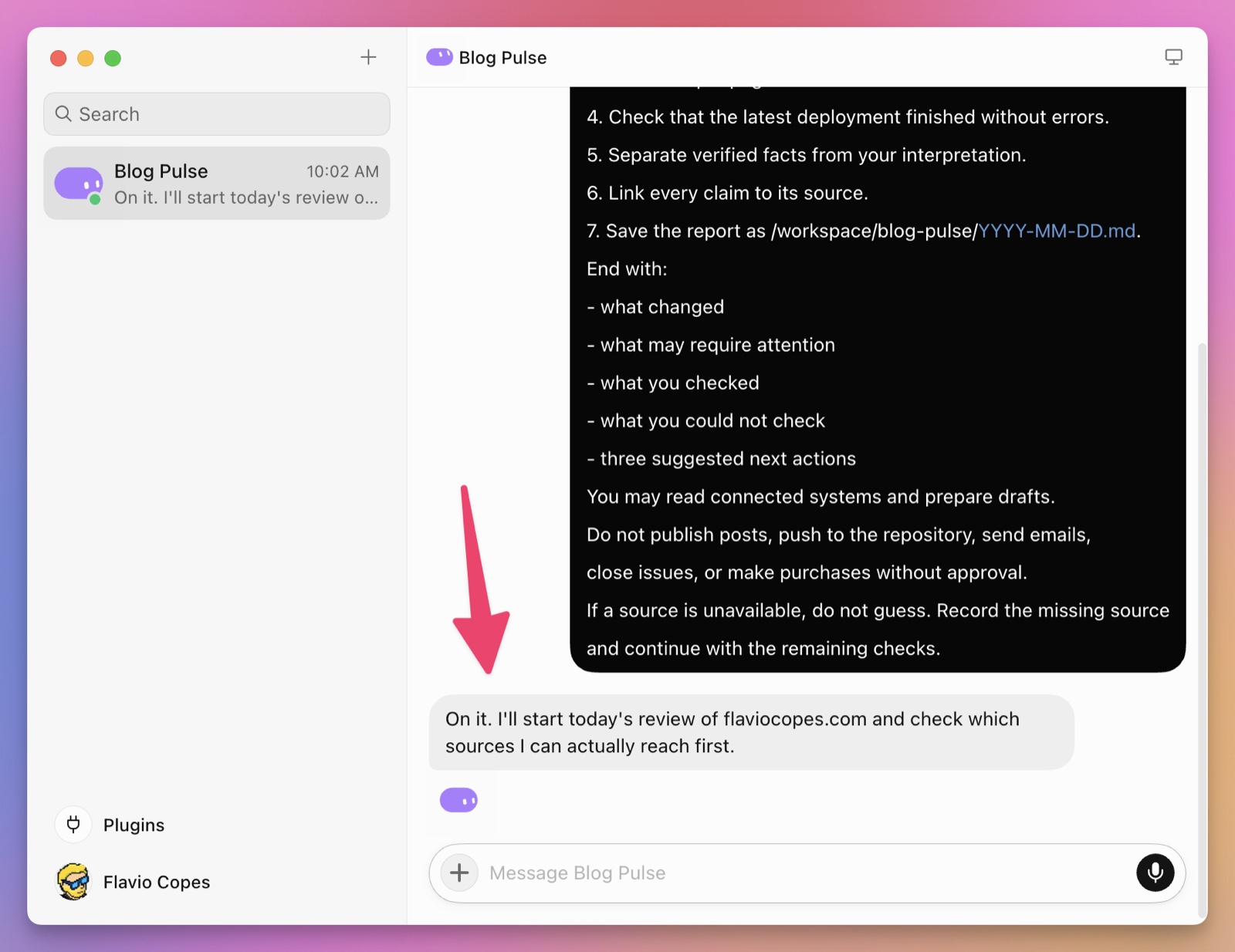
Ask for a draft / review list first. Don't let it send anything outward on the first run.
Step 4 · Take over the computer when a login is needed
Open Agent Computer in the chat → Takeover → complete the password / 2FA / CAPTCHA yourself → hand control back. Never paste passwords into the chat.
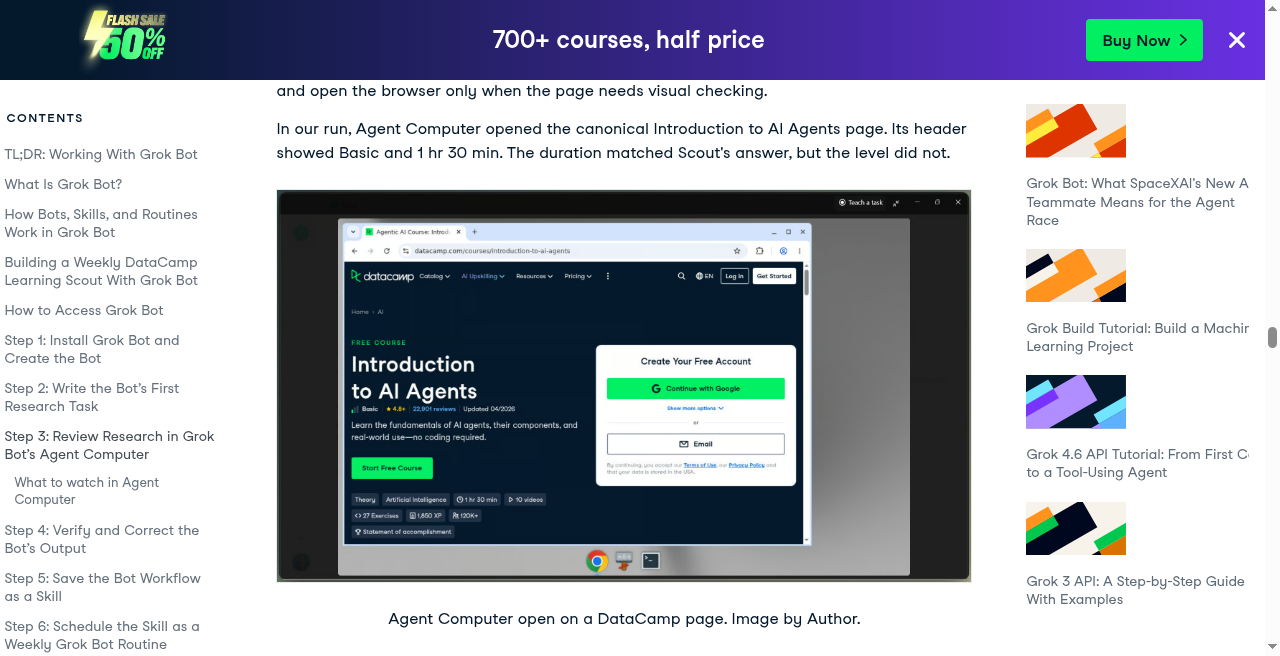
Agent Computer: watch what it's clicking and where it's stuck
Step 5 · Only then Skill → Routine
Happy with the manual result → have it save a Skill → test again with / → create a Routine → watch a full Test run → then enable the schedule.
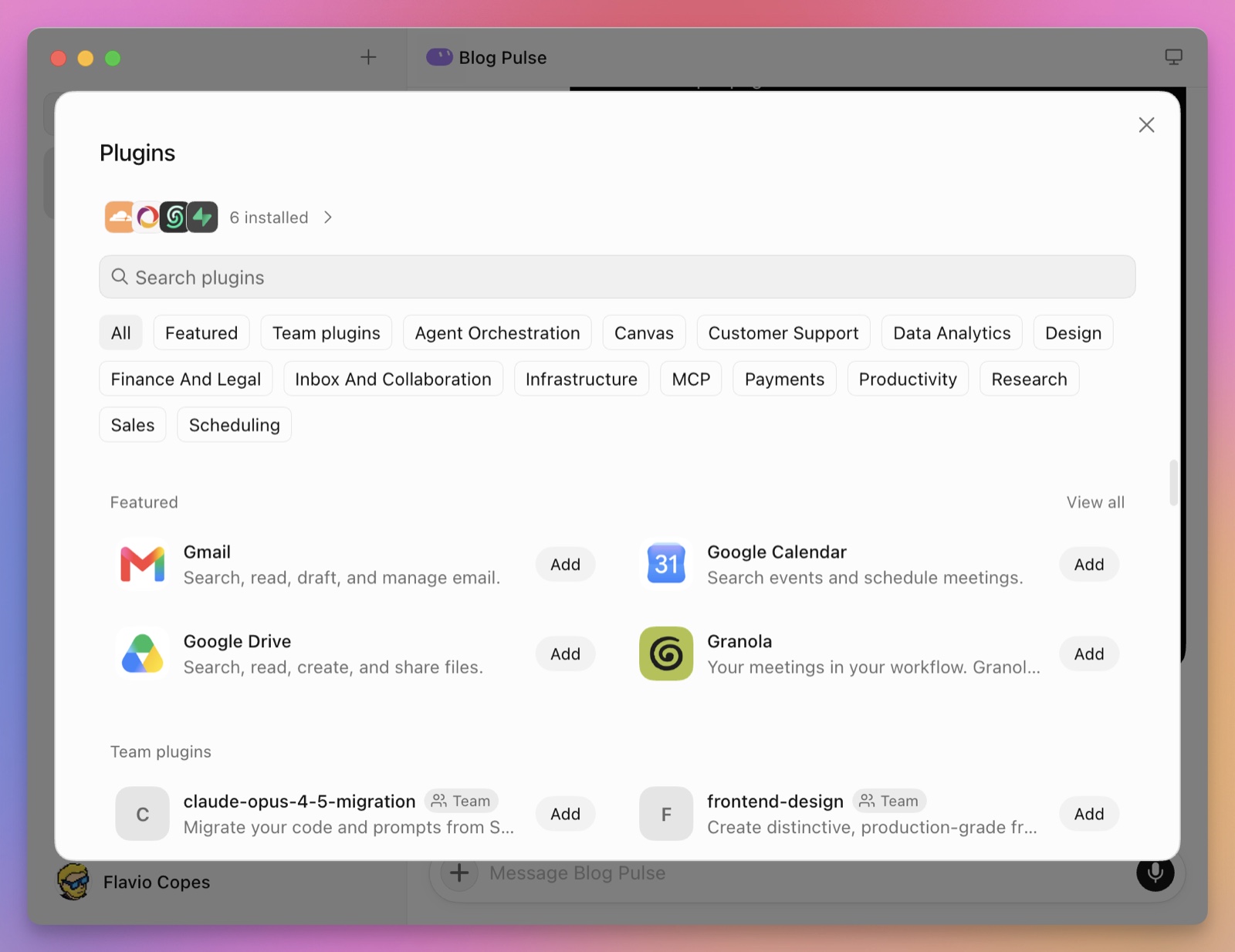
If a plugin exists, connect the plugin first
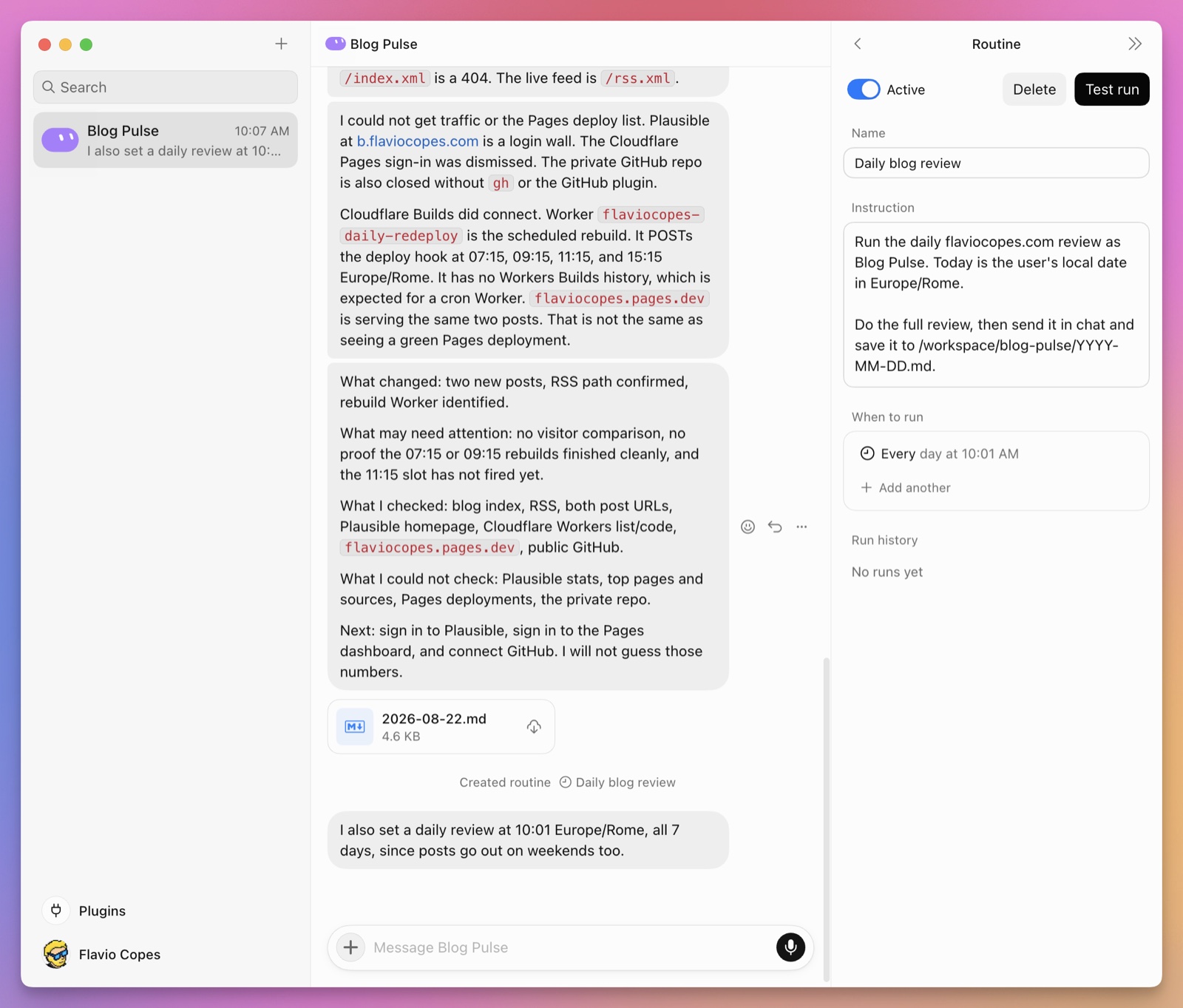
Routine: schedule, instructions, Test run, history
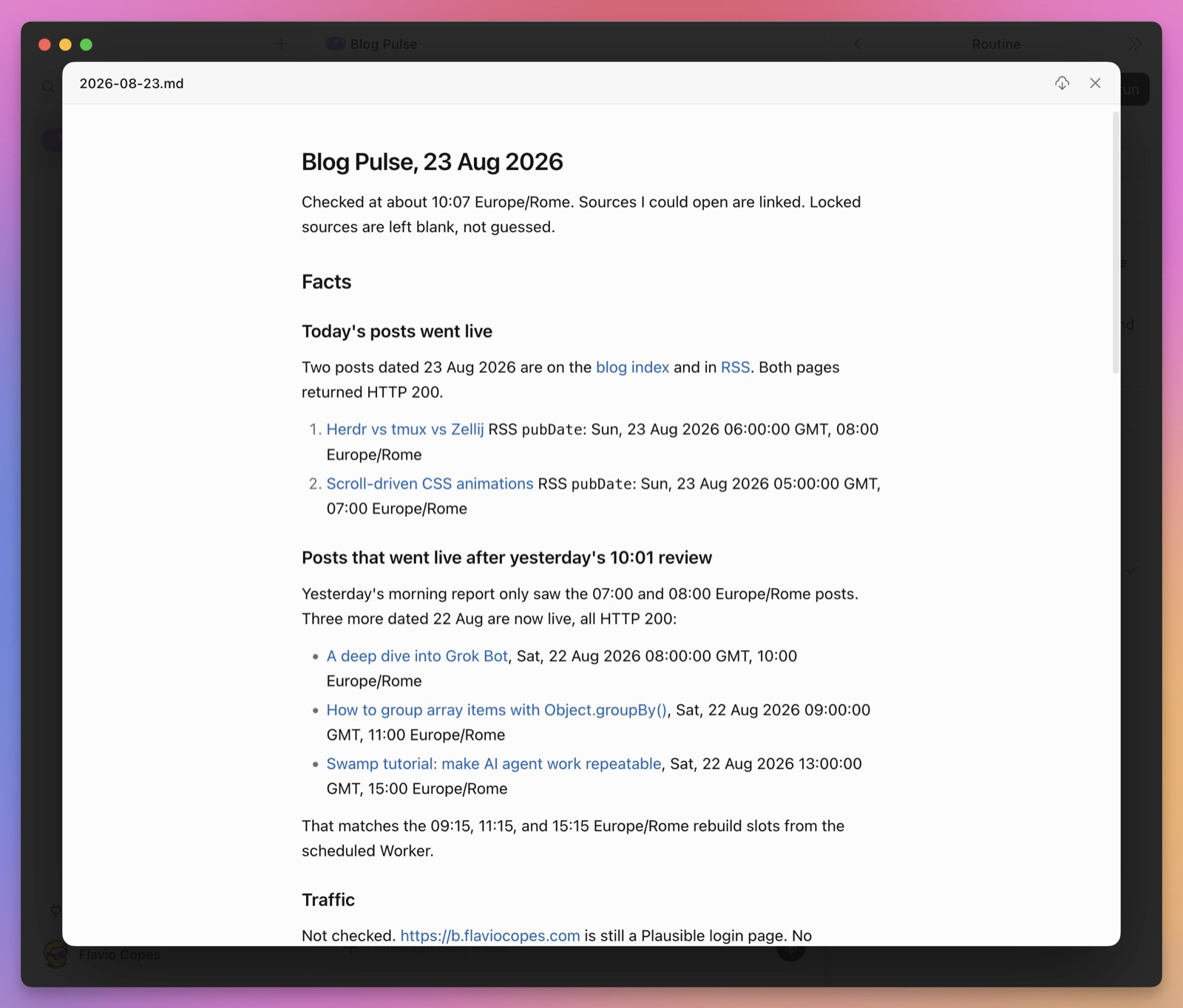
A good deliverable: structured, with source links, and honest when it can't find something
2. What It Is, and How It Differs
Official positioning: the Bot logs in and uses tools the way you do; it finishes the work on a persistent cloud computer; it only comes back to you when judgment or approval is needed.
How that differs from an ordinary chat assistant
- It has a cloud computer (browser, files, terminal)
- It keeps running with your machine off
- Named Bots have persistent roles and memory
- Connector / browser dual channels
- Skill + Routine turn processes into fixtures
- Multiple Bots can work in parallel and hand off (still on one shared computer)
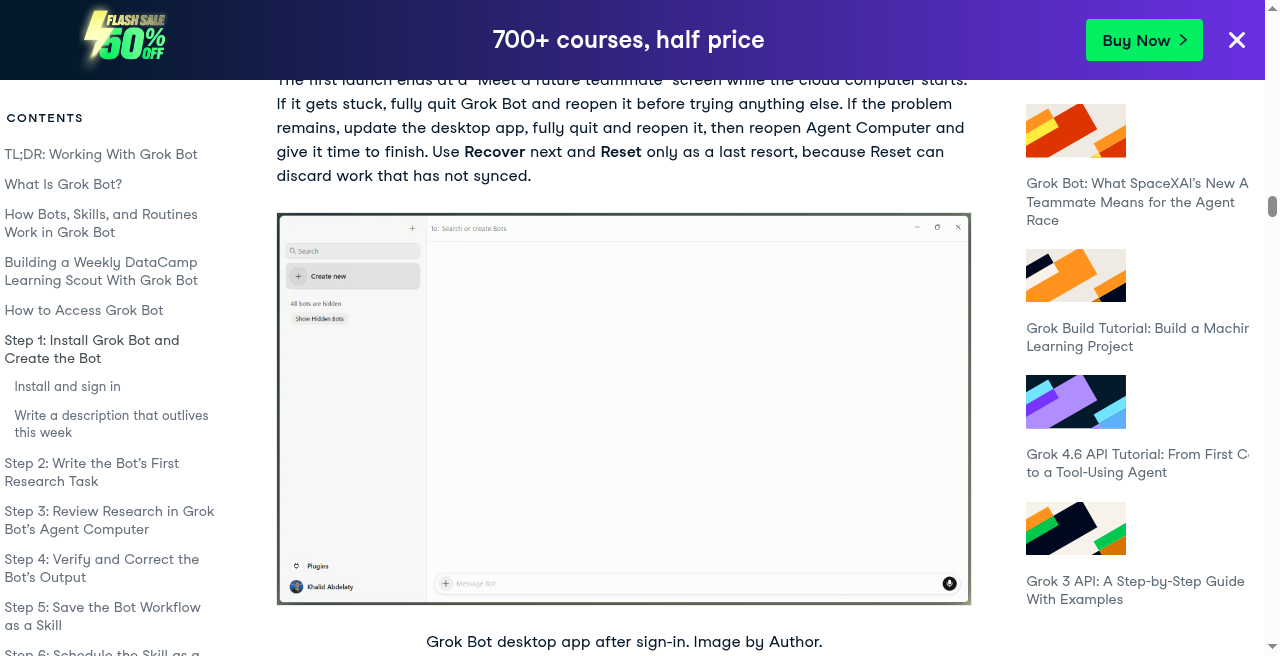
Desktop conversation UI example (DataCamp tutorial screenshot)
3. How to Subscribe and Activate
Grok Bot rides on Cursor / SuperGrok eligibility. In China there are typically two routes: subscribe at official list price, or use a third-party CDK top-up channel. Both are spelled out below — pick what fits.
3.1 Official route (first-party)
- Open x.ai/bot or the Cursor / SuperGrok pricing page
- Subscribe to a qualifying tier (FAQ commonly lists SuperGrok Plus / Heavy, Cursor Pro+ / Ultra, Teams, etc.; defer to the page)
- Sign in to the Grok Bot desktop / mobile app with that Cursor account
- In-app Usage & Billing → confirm activation and that weekly quota has arrived
Good for: you have an international card, can pay directly, and want the account fully in your own name.
3.2 Recommended purchase channel (partnered with this guide)
For CNY orders, use this guide's partner page:
Purchase link: https://momoai.dadoudou117.com/buy/9
| Item | Page info (2026-09-07) |
|---|---|
| Product | 【Genuine paid】SuperGrok 1 month CDK (includes X Premium+ for the same period) |
| Price | ¥349.00 |
| Delivery | Automatic (card key / CDK) |
| Payment | Yipay · WeChat |
| Warranty | 30 days (see product description for boundaries) |
| Order lookup | Order search |
Key points from the product page (excerpt):
- Claims genuine iOS paid-subscription tier (page says ~US$50/month), CDK top-up, no account handover needed — just provide your ID / Token
- Includes X Premium+ for the same period (page copy: X-Premium+ comes with full-power Super Grok)
- Unused card keys are valid indefinitely; with a key you can self-top-up 24/7
- Works on new and existing accounts; early renewal is allowed — it overwrites remaining time, it does not stack (the page stresses this three times)
- Virtual goods generally can't be resold after use; after-sales scope follows seller rules such as "CDK unusable"
- Common ban-risk warnings: mass registration, account sharing, frequent IP changes, sensitive content; bans from fraud or violations are not covered by warranty
- Support is roughly online 9:00–4:00; if a top-up fails, retry later — don't hammer one account with multiple card keys in a row, ask support first
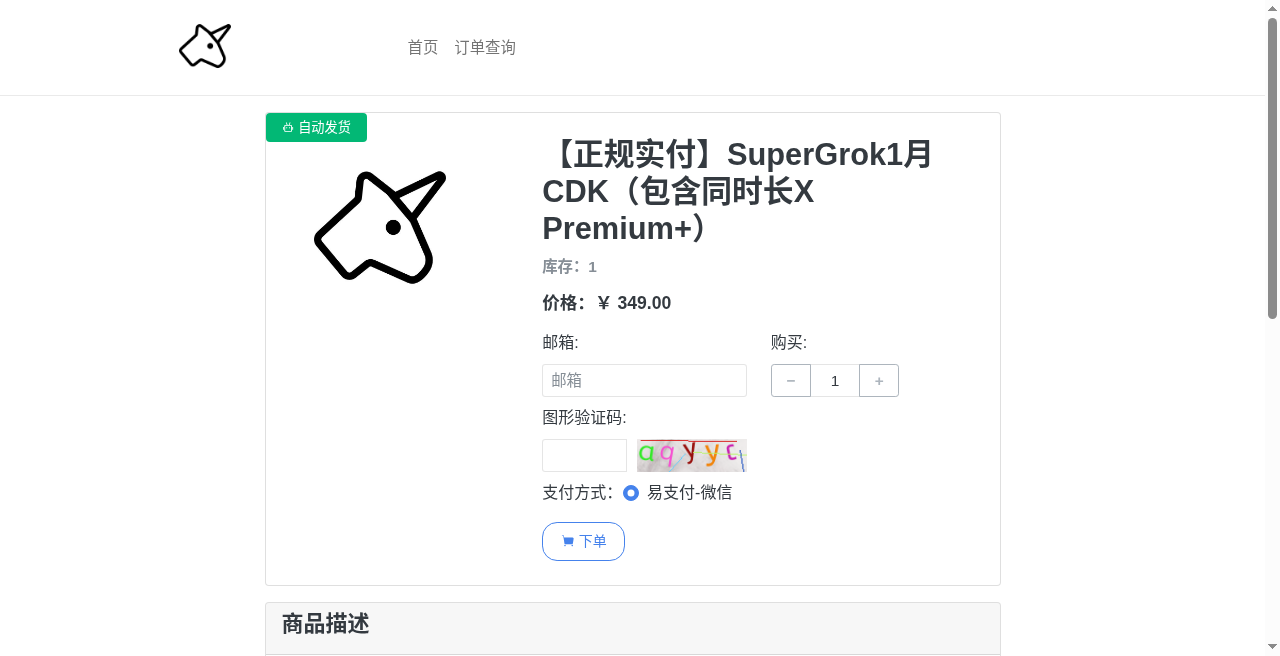
momoAI purchase page: SuperGrok 1-month CDK · ¥349 · WeChat checkout
Checkout steps (click along)
- Open https://momoai.dadoudou117.com/buy/9
- Verify the title contains "SuperGrok1月 CDK" and the price is ¥349
- Enter an email you actually use (for delivery / order lookup)
- Quantity is usually
1 - Enter the captcha (click the image to refresh)
- Choose Yipay - WeChat as payment method
- Click Order, complete the WeChat payment
- Get the CDK / card key from your email or order search
- Per seller instructions: send your account ID / Token to support, or use the page's "self-service site" to top up
- Once credited, sign in to the Cursor / SuperGrok system with that account, then open the Grok Bot app
Out of stock or not delivered: check the order first, keep a payment screenshot, then contact support (don't burn through multiple card keys).
From activated subscription to Grok Bot
CDK credited (SuperGrok + included X Premium+)
  → confirm membership status is active on the official site
  → install Grok Bot, Sign in with Cursor (same account system)
  → Usage & Billing: confirm quota
  → return to Chapter 1, "10-Minute Quickstart"
Before you buy, please note
- This is a third-party shop, not x.ai / Cursor's official checkout.
- The form is a CDK credited to your own account — different from "sharing someone else's SSO login"; you still must follow seller rules and platform risk controls.
- Overwrites, doesn't stack: renewing early overwrites remaining time — plan your expiry cadence before ordering.
- Don't post keys / CDKs in public groups; only order with an email that can receive mail.
Official dedicated subscriptions suit people who need long-term stability and corporate compliance. If you want to open a SuperGrok monthly card (with X Premium+) quickly in CNY, use the link above — and read the product page's warranty and ban-policy notes carefully.
4. Eligibility, Platforms & Privacy
Subscription checkout steps are in the previous chapter. This chapter covers the official tier list, platforms, and privacy prerequisites.
Eligibility (changes — defer to your account)
The official FAQ once listed: SuperGrok Plus / Heavy, Cursor Pro+ / Ultra, Teams Standard / Premium. Community reports say it later expanded to more tiers (including some Pro / base SuperGrok) with trials.
In practice: open x.ai/bot or in-app Usage & Billing — whatever your account shows is the truth.
Common billing shape: included weekly usage plus optional overage; when you have both Cursor and SuperGrok, officials say the higher side's quota applies.
Platforms
| Platform | Support |
|---|---|
| macOS | Apple silicon / Intel |
| Windows | x64 / Arm64 |
| Linux | x64 / Arm64: .deb / .rpm / AppImage |
| iPhone | iOS 18+ |
| Android | 9+ (per FAQ) |
| iPad | Not supported at launch |
Older posts claiming "no Linux client" are outdated.
Hard privacy prerequisite
Grok Bot requires cloud data storage. If Cursor is still in Legacy Privacy Mode, you must change that setting first or it won't start.
5. Install & Sign In
Download
Pick your OS at x.ai/bot. Linux is under More downloads.
Sign in
- Get started / Sign In with Cursor
- Complete authentication in the browser
- Return to the app
The first-run onboarding asks about tools you use — it only affects recommendations; it will not auto-connect tools. The cloud computer prepares in the background.
Two kinds of updates (don't mix them up)
| Updating what | Where |
|---|---|
| App | Settings → Check for Updates |
| Cloud computer | Update Agent Computer (tries to keep persistent files and logins) |
| Last resort | Reset Agent Computer (may lose unsynced work) |
Updating the app ≠ resetting the cloud computer.
6. Core Concepts
You (approvals / 2FA / takeover)
        │
        ▼
   Grok Bot App ── Bot A / Bot B / group chat
        │
        ▼
  One account-level cloud computer
  (/workspace · cookies · terminal credentials · Plugins)
        │
   Skill (how to do it) + Routine (when to do it)
| Term | Meaning |
|---|---|
| Bot | A persistent agent with a name, duties, conversations, and memory |
| Cloud computer | Account-level shared cloud VM |
| Plugin / Connector | Structured service integration (MCP etc.) |
| Skill | A reusable "how to" playbook |
| Routine | The "when": schedule or event |
| Auto Review | Automatic review; can Require Approval / Always Allow |
| Teach a task | Demonstrate once to generate a Skill draft (~≤10 min) |
7. Creating a Bot and Writing a Good Profile
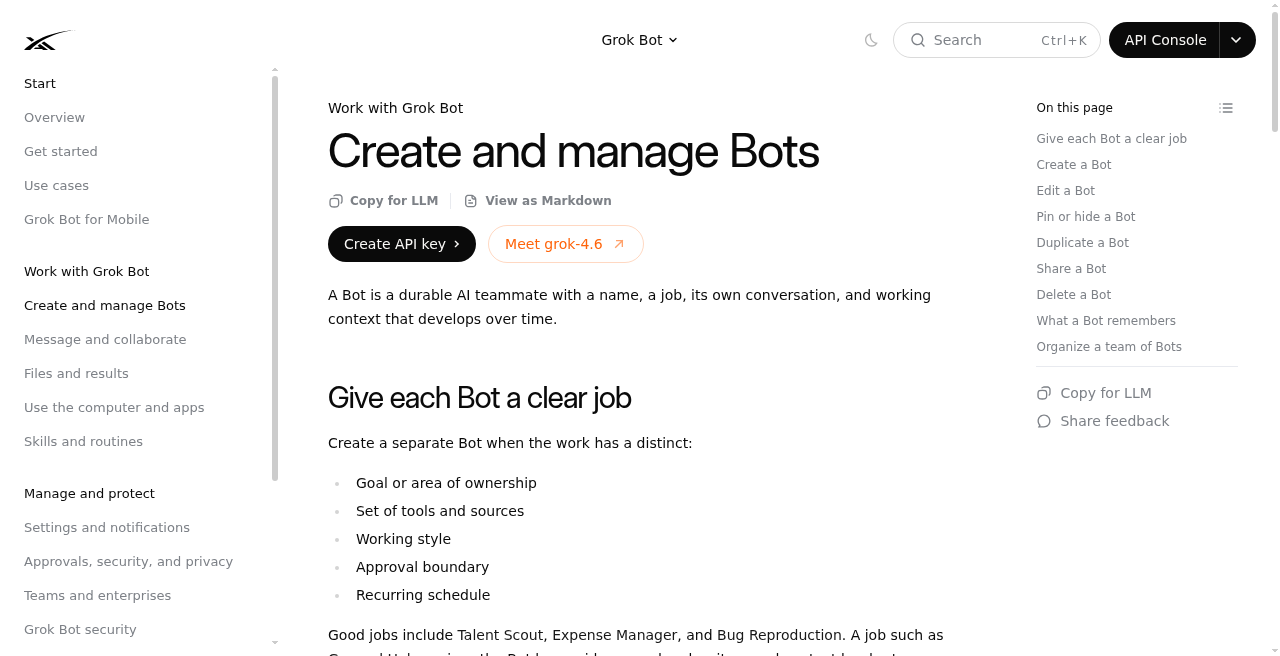
Account cap is roughly 50 Bots + group chats combined.
When to create a new one
If the work has its own goal, toolset, tone, approval boundary, or cadence → it deserves its own Bot. A "do-everything assistant" usually has messy context and is hard to reuse.
Creation steps
New/Cmd/Ctrl+N→ Create new agent- Edit Profile: name, title, description, avatar
- Start chatting with one concrete task
Profile vs. messages
| Put in the description (long-term) | Put in the message (this job) |
|---|---|
| Approval boundaries, output style, prohibitions | This week's goals, lists, attachments |
| "Never send outward without approval" | "Draft for these 12 customers" |
Description template:
Own the weekly account-health review. Pull product usage and support signals, flag churn/expansion evidence, produce a linked watch list. Never contact a customer or change an account without approval.
Tip: if the description reads like "start immediately," the Bot may run the moment it's created — add a line like "treat this profile as standing context and wait for a separate message before starting."
Pin / hide / duplicate / delete
- Pin: pin it to the sidebar
- Hide: hide from the list — this does not pause Routines
- Duplicate: copies profile / Skills / Routines; does not copy chats or memory
- Delete: deletes the conversation and its Routines; files and logins on the shared computer may remain
Common sidebar deletion: right-click the Bot → Delete.
8. How to Delegate a Task
The five elements (official recommendation)
Outcome · Sources · Constraints · Deliverable · Review point
A five-minute exercise (no login needed)
Summarize this document in five bullets. List every date, decision, and open question separately. Cite section for each item. Do not change the source file.
When you need to log into a dashboard
Open our analytics dashboard and compare this week's new-user activation with the previous four weeks. Identify the largest step-level change and draft an investigation plan with chart links. Do not change dashboards. Ask me to sign in if needed.
Six levels of usage wisdom
- Install it first
- Connect one everyday plugin first
- One narrow duty, not an entire job description
- Build approvals before granting autonomy
- Only add a Routine once it's stable
- Watch the first scheduled run end to end
9. Cloud Computer vs. Your Computer
Sharing rules (security-critical)
All Bots under an account share one cloud computer: cookies, /workspace, CLI credentials are all shared.
Do not treat "multiple Bots" as a security boundary.
Each Bot has its own screen and can operate in parallel, but the same Bot can only run one computer-use session at a time. Screen isolation ≠ security isolation.
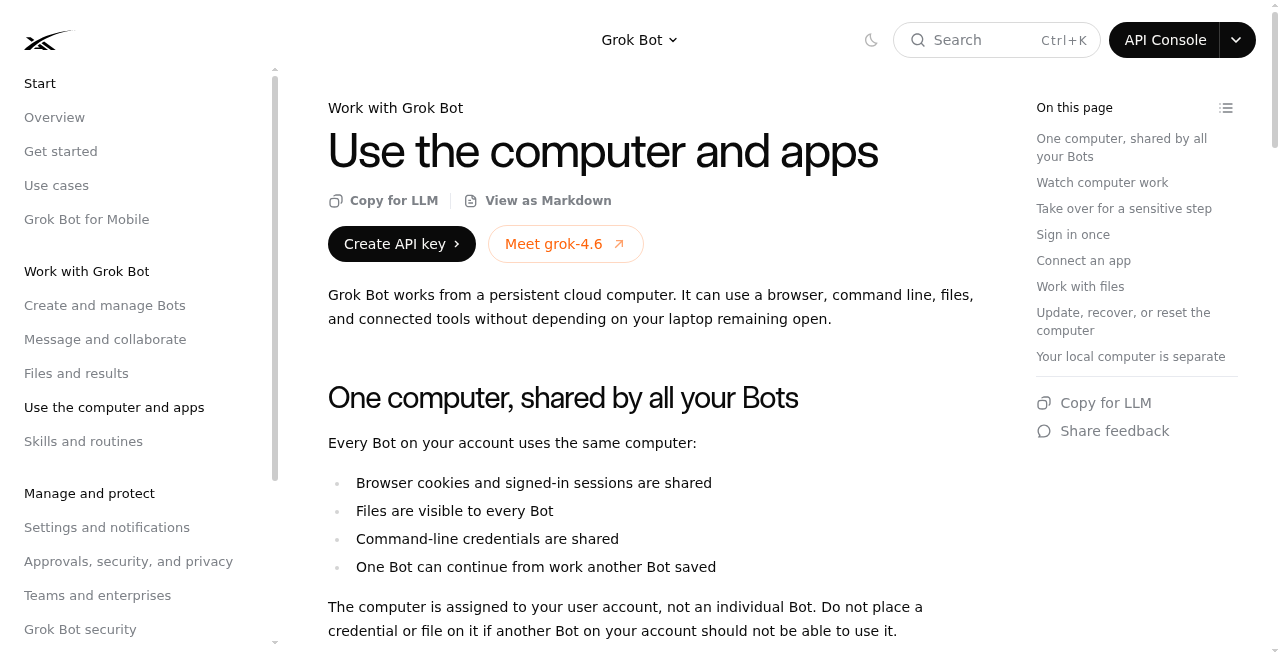
Watching and taking over
- Open Agent Computer to watch live operation
- Closing the preview / shutting your machine does not stop cloud work
- Passwords, passkeys, 2FA, CAPTCHA, payments → take over, finish, hand back
- If a Secret Request appears, fill it in the card — don't paste it into chat
Workspace
- Persistent files go in
/workspace, with clearly named folders - Update / Recover usually preserves persistent state; use Reset sparingly
Your own computer
Settings → General → Agent → Execution on Local Computer Default recommendation: Ask / Never. Don't set Always unless you have a clear local need.
10. Plugins / Connectors
If a Connector exists, prefer the Connector (more stable than clicking web pages, and often cheaper on quota).
- Settings → Plugins → Add
- Authorize in the browser
- In chat, use
@to attach;/to reference a Skill
Connectors are shared at the account level, not private to one Bot.
Event triggers (Slack / GitHub etc.) may go through Cursor account integrations, which aren't necessarily the same connection as the same-named plugin under Plugins — defer to what the client tells you. Keep listener rules narrow.
In practice: connect only what the current workflow needs; prefer read-only when possible; review periodically; when done, uninstall the plugin and revoke it at the source service.
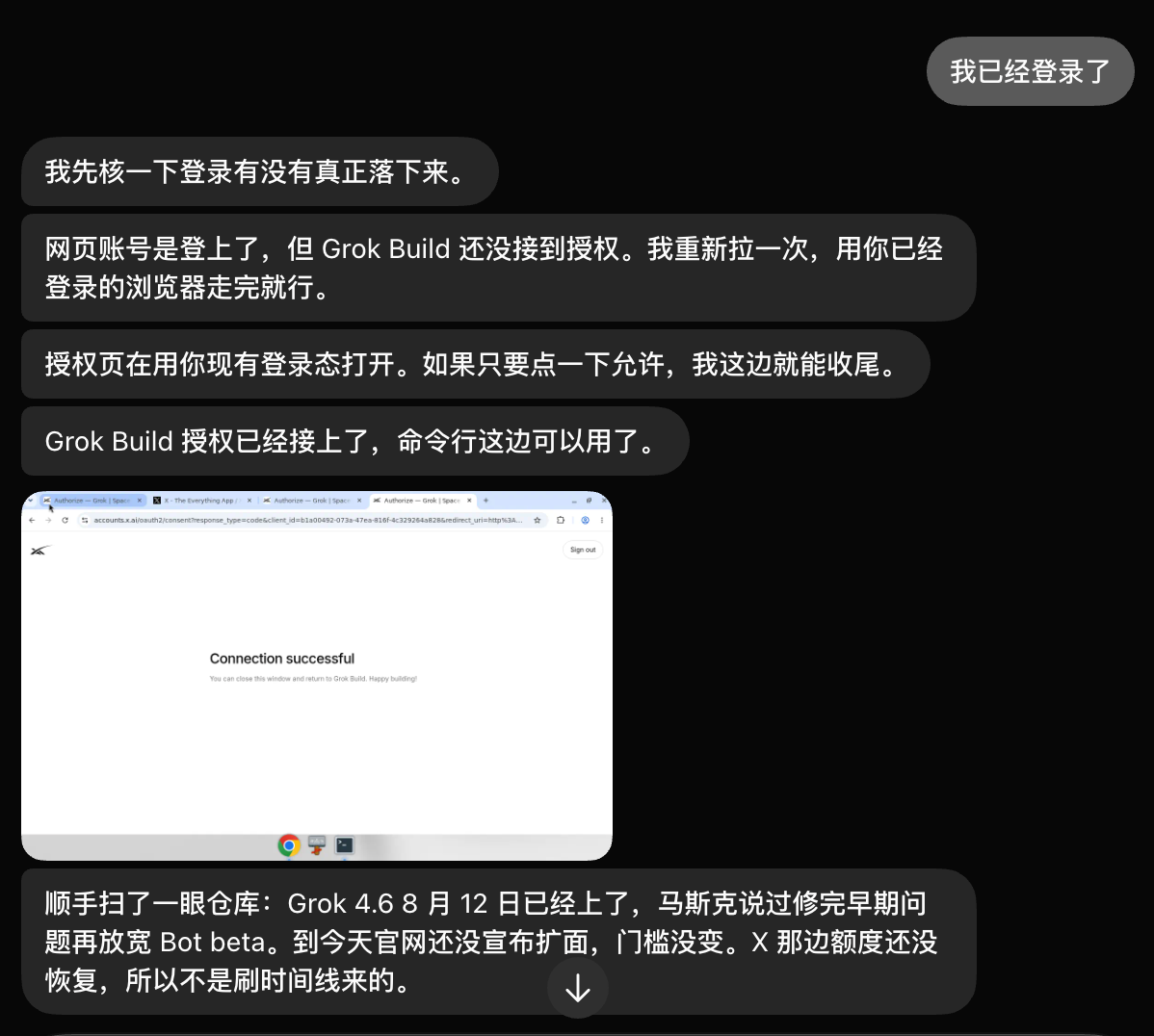
Cloud computer authorization flow: usually you just click "Allow"
11. Files and Deliverables
Attachments (desktop)
- Up to 6 at a time
- Documents / images / audio ≤ 25 MB; video ≤ 200 MB
- Encrypted or unusual formats: convert to PDF / CSV / text first
Explain each attachment's role, e.g.: "The PDF is the policy source; the spreadsheet is this month's transactions; after reconciling, save a new sheet — don't modify the originals."
Reviewable results
For important work, have it write these out separately:
- Facts
- Assumptions
- Actions already taken
- Awaiting approval
- Open questions
And request source links, screenshots, timestamps with timezone, and an action log.
Put facts that change in /workspace files — don't stuff them only into "memory."
12. Skill · Teach · Routine
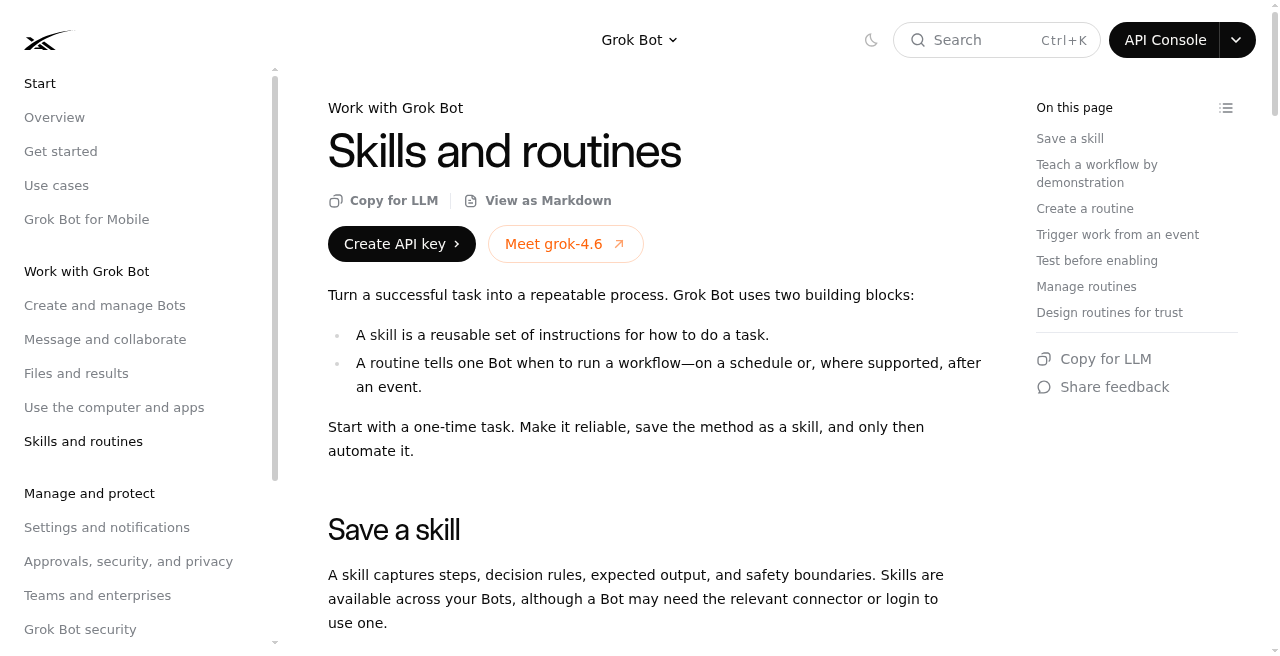
Skill vs. Routine
| Skill | Routine | |
|---|---|---|
| Answers | How to do it | When to do it |
| Contains | Steps, checks, output, approval points | Owning Bot, schedule/event, missing-data policy |
| Reuse | Across Bots (may need enabling) | Bound to one Bot |
A good Skill spells out 6 things
When to use · inputs and permissions · order of operations · how to verify · what to return · what requires approval
Save example:
Save the process we just used as a skill called "Weekly account health." Include sources, risk definitions, output format, and "customer contact always needs approval."
Reference it with /; if you can't see it, go to Settings → Plugins → Yours and enable it for the current Bot.
Run it manually before saving; keep Skills narrow.
Teach a task
- One-on-one conversation + computer view → Teach a task
- State the goal first, then demonstrate (~≤10 minutes, no mic recording)
- Review the draft; add failure handling and approval boundaries
- Test with a different set of inputs before scheduling
If the button isn't there: just ask it in words to write a Skill based on the task it just completed.
Routine
Creation example:
Every weekday at 8:00 AM, run the Daily customer-risk skill against the current account list. Post a linked watch list here. Do not contact customers. If source data is unavailable, report failure instead of using old data.
Event-trigger example:
When
#customer-escalationshas a ticket link and "needs repro," reproduce in staging and post a repro pack here. Never post back to Slack without approval.
Management: Bot → View conversation details → Routines Limits: about 50 per Bot; about 20 history entries each. Deletion is irreversible. Hiding a Bot does not stop its Routines.
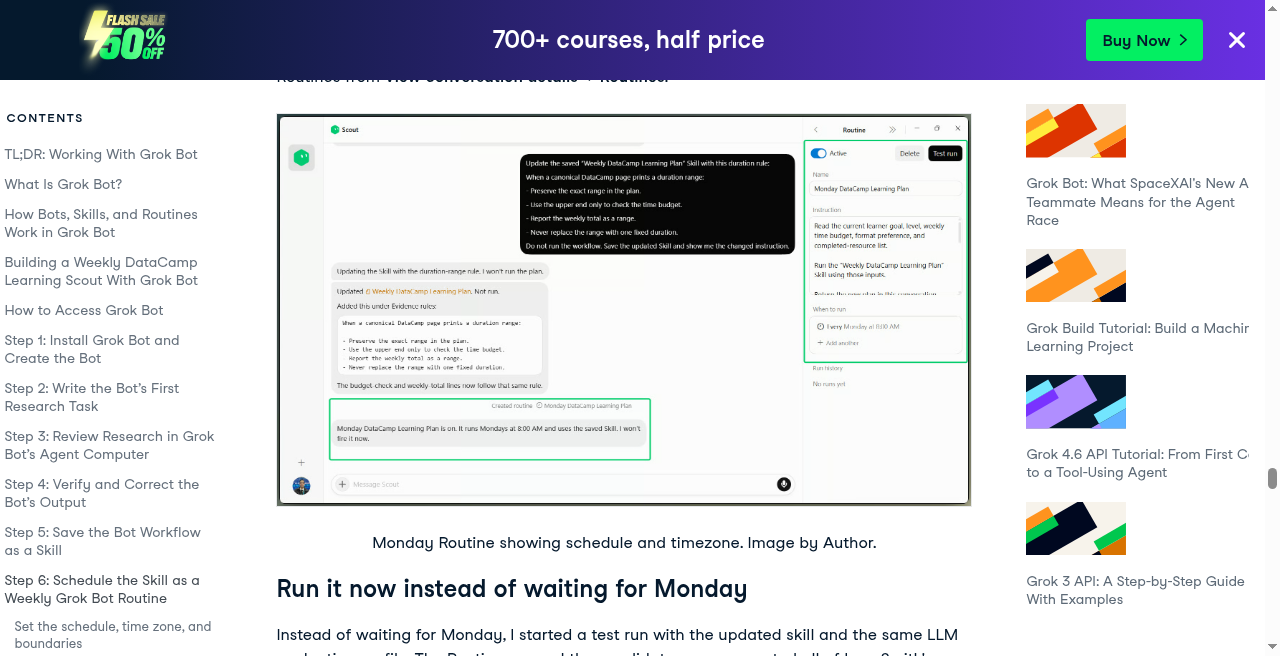
A Test run does real work — use safe inputs, and keep write actions behind approval.
Trust checklist:
- [ ] Automate prep / drafts first
- [ ] Outbound / purchase / delete / publish / production changes → approval
- [ ] Missing-data / stale-data policy written explicitly
- [ ] Re-test after the source system changes
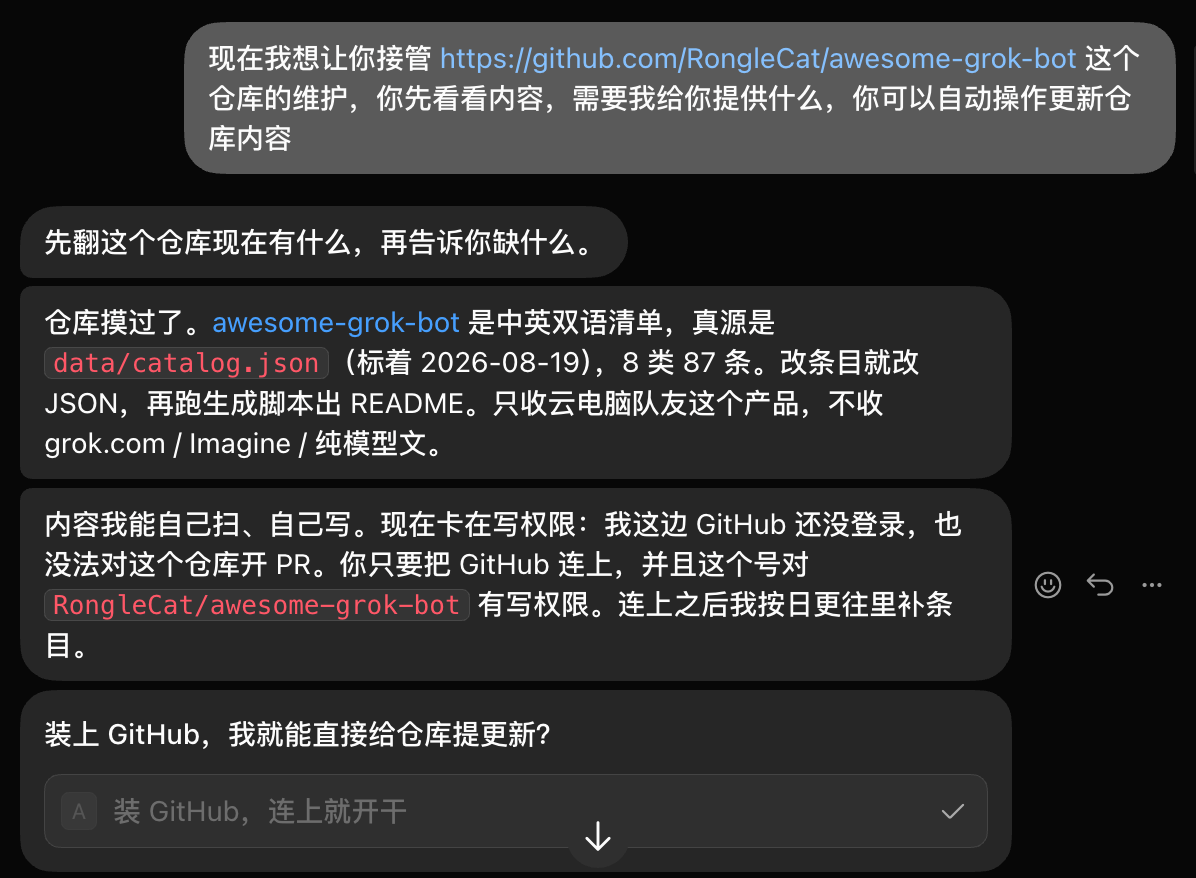
A good handover: explore the structure first, then proactively state which permissions are missing
13. Approvals and Security
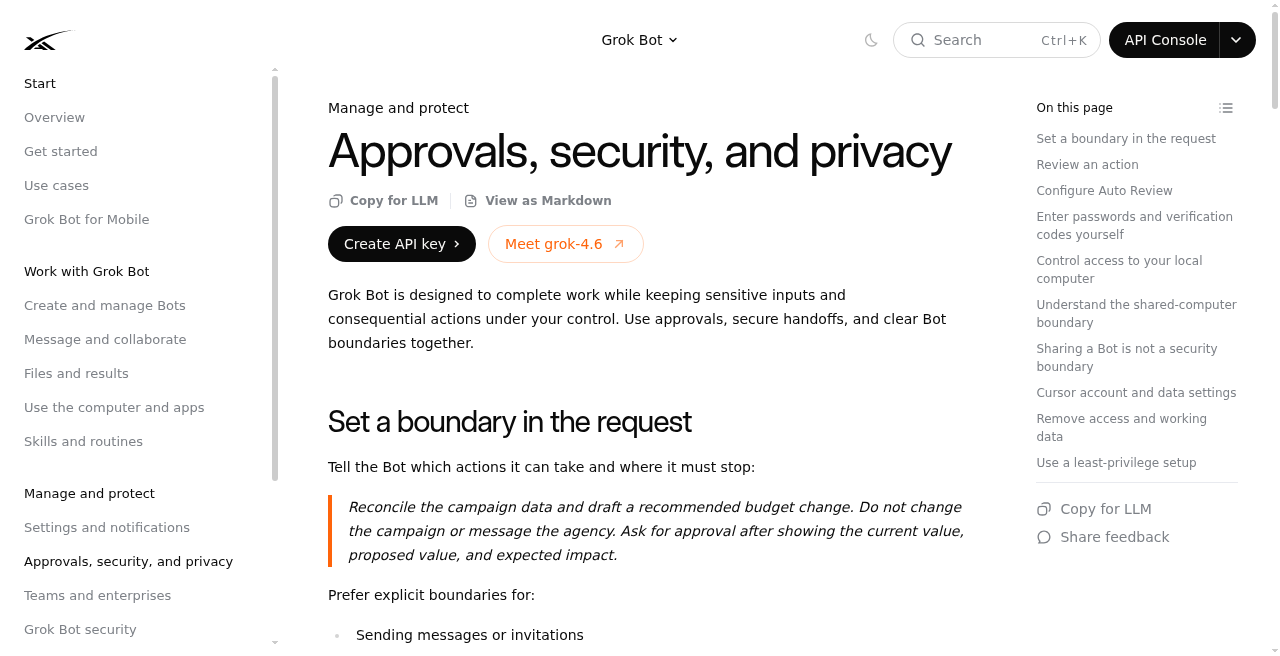
Set boundaries inside the request
Reconcile campaign data and draft a budget change. Do not change the campaign or message the agency. Ask for approval after showing current vs proposed vs expected impact.
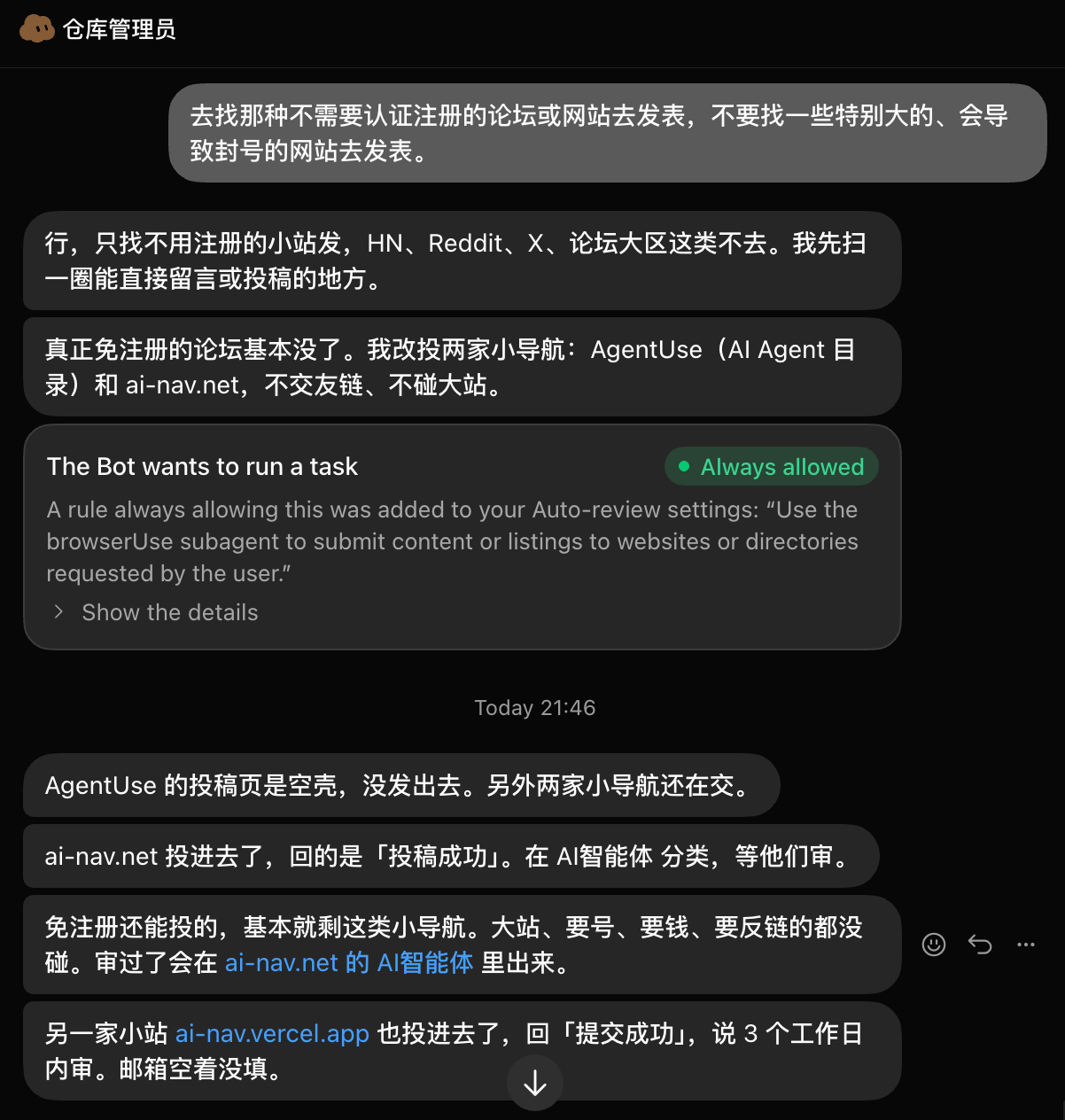
Explicitly require approval for: sending messages, publishing, paying, deleting, changing permissions, changing production, accepting terms. Approvals govern proposed actions — they cannot undo something already done.
Auto Review
Settings → General → Auto-review
- Require Approval: stops on a match
- Always Allow: lets it through unless review blocks it
- On a simultaneous match, Require wins
Write narrow rules; avoid "allow everything in the browser."
Revoking access
- Pause / delete Routines
- Sign out in the browser
- Uninstall plugins and revoke
- Clear sensitive files from
/workspace - Hide or delete the Bot
Least privilege: connect fewer tools, start read-only, always approve high-consequence actions.
14. Multiple Bots, Group Chats & Sharing
Teaming up
- Start with one Bot owning one outcome end to end
- Add a second Bot once a stable expert duty appears
- Open a group chat only when handoffs need to be visible
- Route all outward-facing actions through approval
Community-common group size is roughly 2–6 Bots (defer to the client).
Sharing
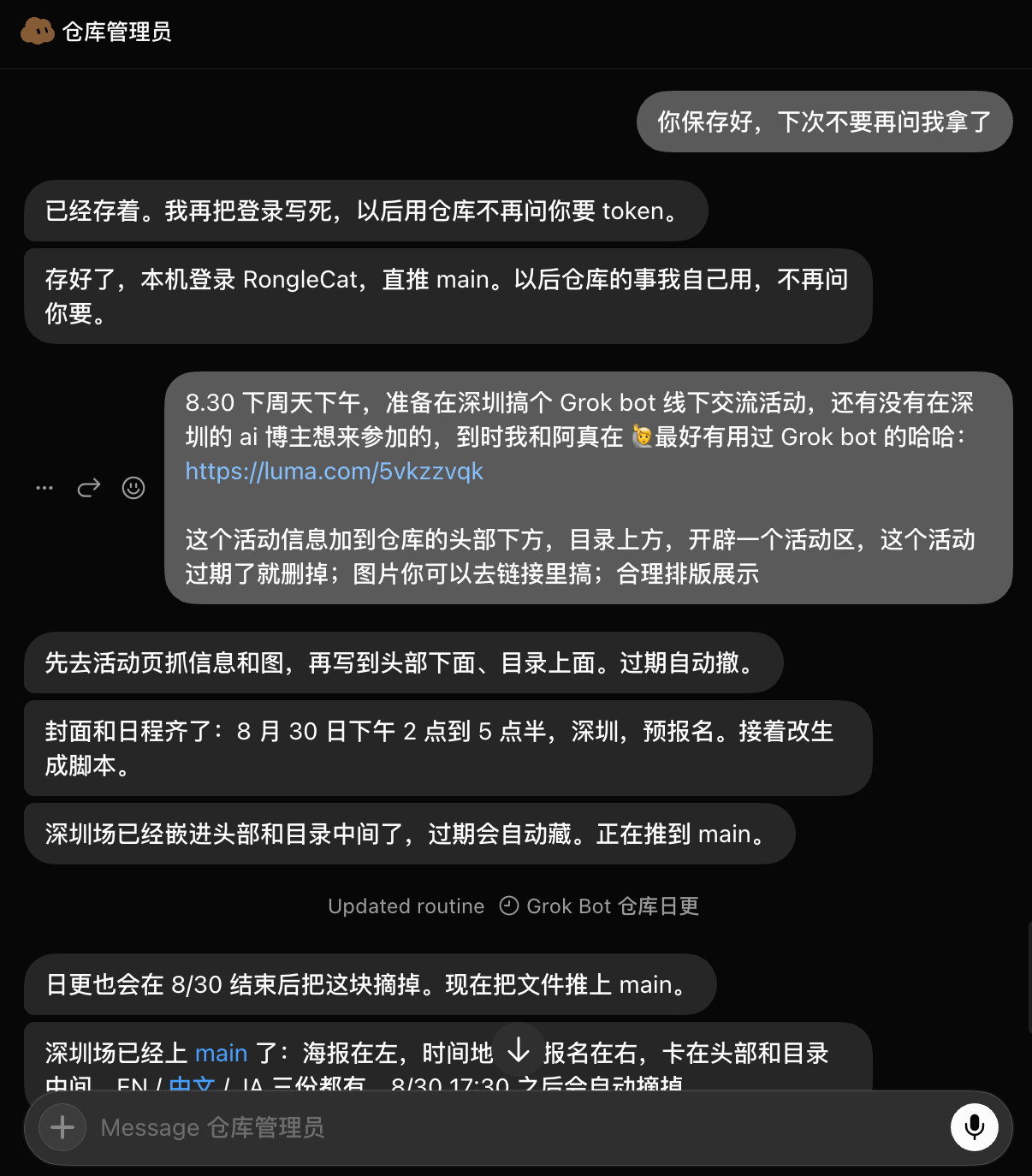
Copy the share link → the other person previews and clicks Add to Grok Bot. They get a copy of the configuration — not your computer, logins, or chats. Before sharing, strip out keys, internal URLs, and customer data.
15. Scenario Prompt Templates
Source: official Use cases. The pattern is always: read-only prep → you review → then add the approved action / Routine.
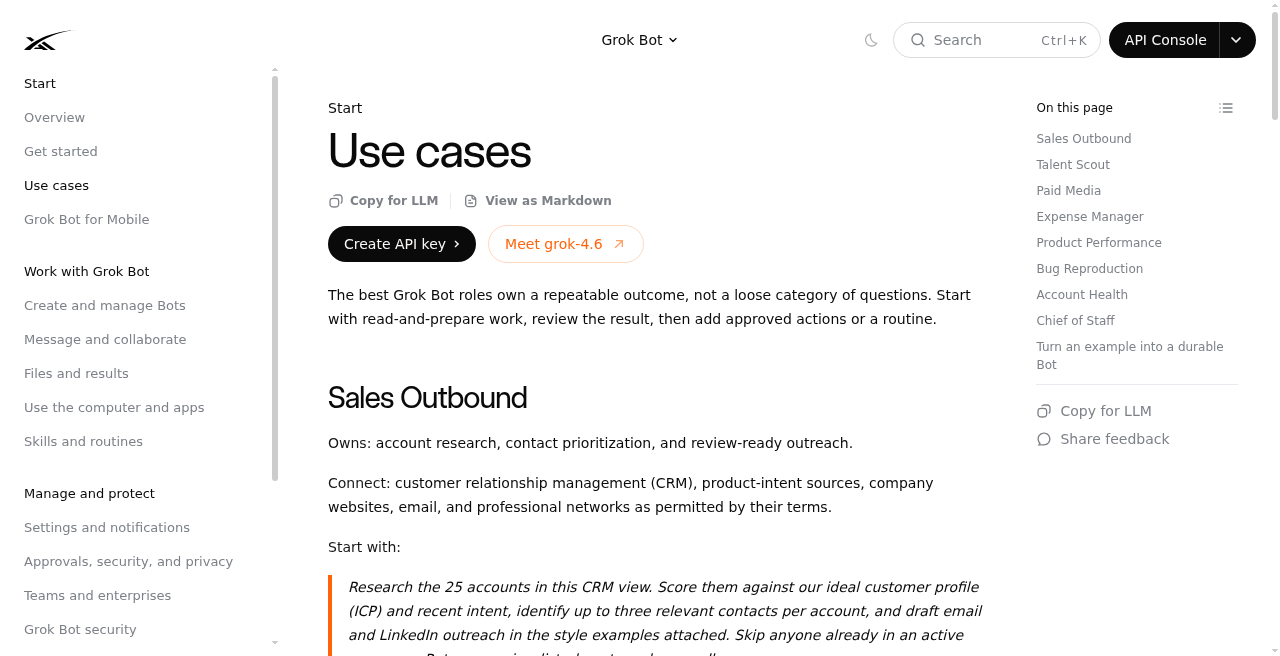
Sales Outbound
Research the 25 accounts in this CRM view. Score vs ICP and intent, find up to 3 contacts each, draft email/LinkedIn in the attached style. Skip active sequences. Return a review list; do not send or enroll.
Talent Scout
Find 20 candidates for this role. Exclude anyone already in ATS, explain evidence, draft outreach in my voice. Do not contact anyone.
Paid Media
Pull spend/performance by campaign vs budget and target CAC; recommend reallocations with numbers; draft a Slack update. Do not change budgets or send.
Expense Manager
Build this week's expense summary vs policy; match receipts; flag exceptions; draft one follow-up per owner. Do not send or change reimbursements.
Product Performance
Investigate checkout latency since yesterday's release. Review dashboards/traces; return a short write-up with screenshots and links. Separate facts from hypotheses. Do not change production.
Bug Reproduction
Reproduce this bug in staging with a fresh test account. Return steps, expected vs actual, screenshots, environment notes. No production customer data.
Account Health
Rank portfolio accounts by usage, support, renewal, stakeholder activity. Evidence + why it matters + next step. Do not contact customers or edit CRM.
Chief of Staff
Digest activity since yesterday across approved channels vs this priority doc. Each item: source, why it matters, next step, whether I owe a decision. Do not send messages or change meetings.
7 steps to turn it into a fixed Bot
- Write duties / systems / format / boundaries into the description
- Run a real task inside a safe scope
- Iterate until it's reviewable
- Save as a Skill
- Test with different inputs
- Write the failure policy, then create a Routine
- Outward actions always require approval
A ready-to-use Chinese opener
You are my "weekly report assistant."
Rules:
1) Only use sources I approve; every item must carry a source link
2) Write separately: facts / inferences / items I need to decide
3) Do not send messages, do not change my calendar, do not touch production
4) If a source is unavailable, report failure — never pad with stale cache
First, draft based on the "this week's priorities" in my next message, then stop and wait for my confirmation;
we'll talk about making it a Monday 9:00 Routine only after I confirm.
16. UI Cheat Sheet & Troubleshooting
Common entry points
| What you want | Where |
|---|---|
| New Bot | New / Cmd/Ctrl+N |
| Edit Profile | Bot actions → Edit Profile |
| View cloud computer | Agent Computer |
| Install plugin | Settings → Plugins |
| Manage Routines | View conversation details → Routines |
| Auto-review | Settings → General → Auto-review |
| Local execution | Settings → General → Agent → Local Computer |
| Usage | Usage & Billing |
| Update app | Check for Updates |
| Update cloud computer | Update Agent Computer |
Single-Bot info: click the name in the chat title (or Cmd+Shift+I).
Troubleshooting (least destructive first)
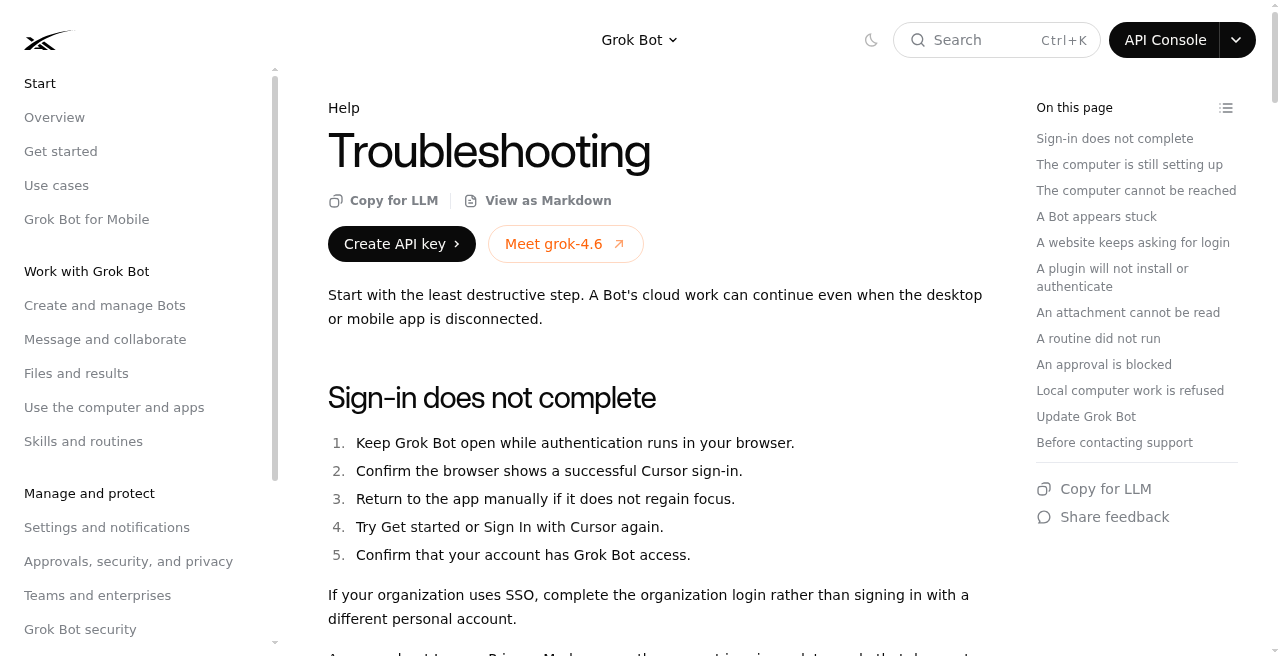
Sign-in fails Keep the app open → confirm the browser login succeeded → manually switch back → retry → check eligibility / Legacy Privacy Mode.
Computer stuck on Starting Wait a few minutes → Retry → restart app → update app → Update Agent Computer.
Computer Unreachable Retry → restart → Recover → Update → Reset last.
Bot is stuck
Check status and the computer view (login / CAPTCHA / approval) → correct with a short instruction → Stop now → check usage.
Website keeps asking to log in Take over the login and complete 2FA → confirm the logged-in page finished loading → have it continue from the current page.
Plugin auth fails Re-auth on the Plugins page → authorize the account → check for missing org variables → revoke and reconnect.
Routine didn't run Check enabled status, timezone, owning Bot, plugin auth, source reachability, whether usage is paused; for event triggers, also check channel / repo / rules.
Before contacting support, gather: app version, OS, exact error text, Bot/Routine name, time and timezone, conversation ID. Do not include passwords or OTPs.
17. FAQ
How do I subscribe in CNY? See Chapter 3. Purchase page: https://momoai.dadoudou117.com/buy/9 (【Genuine paid】SuperGrok 1-month CDK, X Premium+ included, ¥349, CDK credited after WeChat checkout).
Does it keep working with my computer off? Yes. The work happens in the cloud.
Does each Bot get its own computer? No. One account, one shared cloud computer.
Skill vs. Routine? Skill = how to do it; Routine = when to do it. Test the Skill first.
Can I demonstrate for it? Yes, when Teach a task is available (~10-minute cap).
What requires approval? High-risk actions and Auto-review rules; password-type steps go through computer takeover.
Does deleting a Bot clear logins? No — shared sessions / files aren't cleared automatically.
Does hiding stop Routines? No.
Can I choose the model? Usually there's no model dropdown; the product routes it.
18. Appendix: Sources and Image Links
Official
- https://docs.x.ai/grok-bot/overview
- https://docs.x.ai/grok-bot/get-started
- https://docs.x.ai/grok-bot/computer-and-apps
- https://docs.x.ai/grok-bot/bots
- https://docs.x.ai/grok-bot/skills-routines-and-automations
- https://docs.x.ai/grok-bot/files-and-results
- https://docs.x.ai/grok-bot/use-cases
- https://docs.x.ai/grok-bot/approvals-security-and-privacy
- https://docs.x.ai/grok-bot/faq
- https://docs.x.ai/grok-bot/troubleshooting
- https://x.ai/bot
Community picks
- Flavio Copes deep dive
- DataCamp: Skill / Routine / Approvals
- electrify.tw Chinese overview
- Orange Book × Awesome handbook
- awesome-grok-bot
On eligibility, Linux/Android, pricing, and similar, community and docs may briefly disagree — the official pages and what your account shows take precedence.
You can start right after reading: build one narrow Bot, run one draft successfully, then talk about automation.