ChatGPT Images 2.5 Just Launched! 8 Playbooks You Can Copy Right Now
Images 2.0 solved 'it can draw'; Images 2.5 solves 'it can edit, iterate and ship at scale'. Up to ~50% lower latency, plus Sketch, Templates, on-image comments and Share Prompt. Two API tracks: Flare for volume, Sunburst for the final pass. 8 copy-ready playbooks and full prompts included.
ChatGPT Images 2.5 Just Launched! 8 Playbooks You Can Copy Right Now
2026-09-09 · MaynorAI Sources: OpenAI official blog / Help Center / Release Notes (2026-09-08)
Let's put the conclusion on the table first:
Images 2.0 solved "it can draw." Images 2.5 solves "it can edit, iterate, and produce at scale."
On September 8, 2026, OpenAI shipped ChatGPT Images 2.5: sharper, far easier to edit, and up to ~50% lower latency versus 2.0. Four genuinely useful things landed alongside it — Sketch (phone doodles), Templates, on-image comments, and Share a prompt. The API splits into two tracks: Flare for volume, Sunburst for the final pass.
Quotas are unchanged, per official wording. Faster ≠ unlimited generations. The dividend is in iteration rounds, not in magic incantations.
- GPT-6 Astra guide for China: https://xianyu110.github.io/GPT6/
- Awesome GPT-6 Astra gallery: https://xianyu110.github.io/awesome-gpt-6-astra/
The official launch frame: faster, sharper, easier to edit — worth opening the app tonight to get your hands on it.
The 30-Second Version: 2.5 vs 2.0, and Flare · Sunburst
Don't let the headlines mush these together. April's Images 2.0 / gpt-image-2 and September's Images 2.5 / GPT-Image-2.5 are not the same thing.
| Name | How to remember it |
|---|---|
| Images 2.0 (2026-04) | The previous "it can draw" workhorse |
| Images 2.5 (2026-09-08) | Faster + easier to edit + Sketch / Templates / comments |
| Flare | The speed-oriented API — default choice for daily output and batches |
| Sunburst | The precision-oriented API — bring it in for finals and hard prompts |
April is 2.0, September is 2.5; the product side calls it Images, the API side calls it Flare / Sunburst.
How to Open It (shortest path)
Three routes are enough:
- Straight from chat: say "generate an image with Images 2.5…", or go to the sidebar Images → Create Image.
- Upload, then edit: drop in a product photo or selfie, and change only 1–3 variables at a time.
- Sketch on your phone: in the input box type
@→ pick Sketch → draw first, describe second.
Work mode: generation and editing are available, but Templates are not in Work yet, and there's no Snake easter egg. For template pipelines, go back to the regular Images panel.
For short video / vertical social images: lock the Aspect ratio in the editor, or hard-code 9:16 / 3:4 / 1:1 in the prompt — don't generate first and crop later.
Images 2.5 covers Web / mobile / desktop / Codex; you can generate and edit images in Codex too. Plus / Pro / Business can still enable Images with thinking (think first, then draw), which is not mutually exclusive with 2.5.
Complex requests can still take a while — "up to ~50% lower" is not "instant forever."
The Core Playbooks
Every playbook follows the same pattern: image + how to do it + a prompt you can copy. Images match the task; no news-card padding.
Playbook 01 · Sketch: Three Strokes Beat Eight Hundred Words
Phone-only, and the official logic is refreshingly practical — sometimes the clearest way to explain an idea is to draw it.
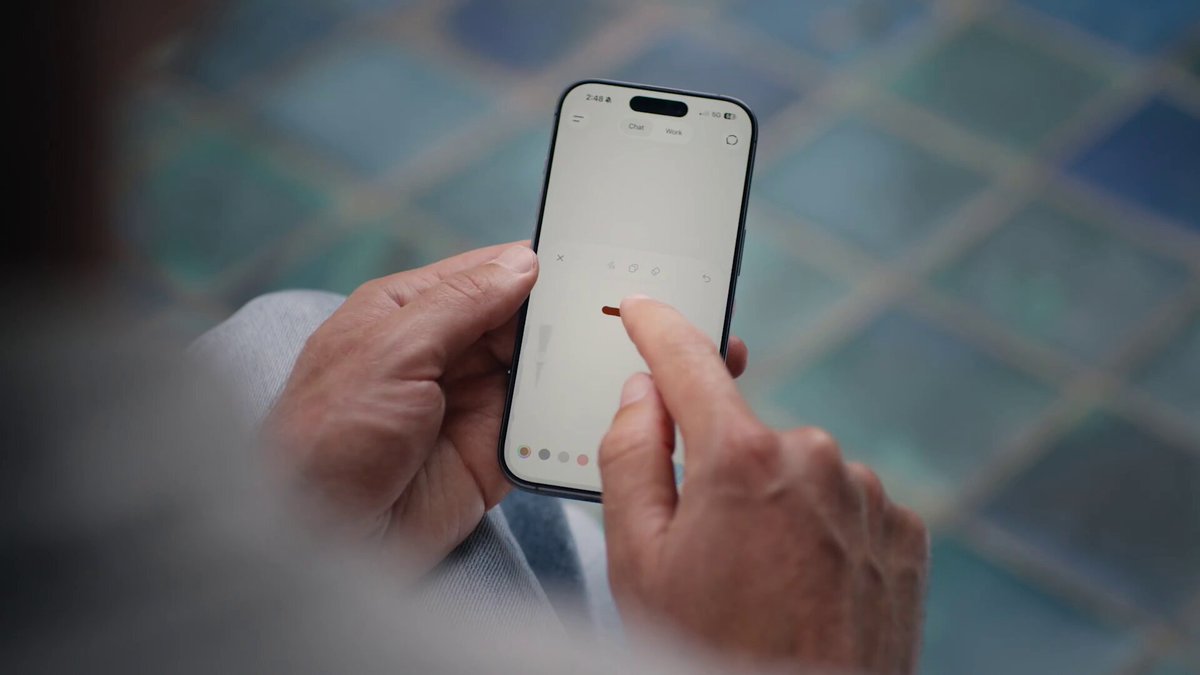
Type @ in the input box and pick Sketch: outline first, style second.
Sketch → finished piece: composition from your hand, aesthetics from the model.
Don't rely on word-magic alone — a sketch is a spatial brief. The English-speaking community is pushing the same narrative.
How to do it
- Open the ChatGPT app
@→ Sketch- Draw the main outline (colors, eraser, undo available)
- Tap the checkmark, then write subject / material / lighting / ratio
- Send
Copyable prompt
Generate a finished image from my sketch:
- Strictly follow the sketch's composition and perspective
- Subject: [product / person / interior]
- Style: [photorealistic / Japanese illustration / 3D render]
- Lighting: [window light / studio softbox / neon night scene]
- Do not add any subject that isn't in the sketch
- Aspect ratio: [9:16 / 1:1 / 16:9]
One-shot interior version:
Turn this rough floor-plan layout into an interior render:
Keep the wall divisions and rough furniture placement;
Style: modern Japanese light wood; Light: afternoon side window light;
Materials: oak flooring, linen curtains; Lens: 24mm, no people.
Good for: packaging wireframes, app UI, stick-figure storyboards, room layouts. Not for: posters dense with tiny text (use Templates first), or legal-grade engineering drawings.
Playbook 02 · Reference-Image Restyling: Change the Outfit, Not the Dog
2.5's official emphasis over and over: a reference subject changed in setting or outfit still reads as the same subject. The community analogy to Photoshop misses the point — this isn't layers arriving, it's the mental model of editing changing from "re-roll" to "revise."
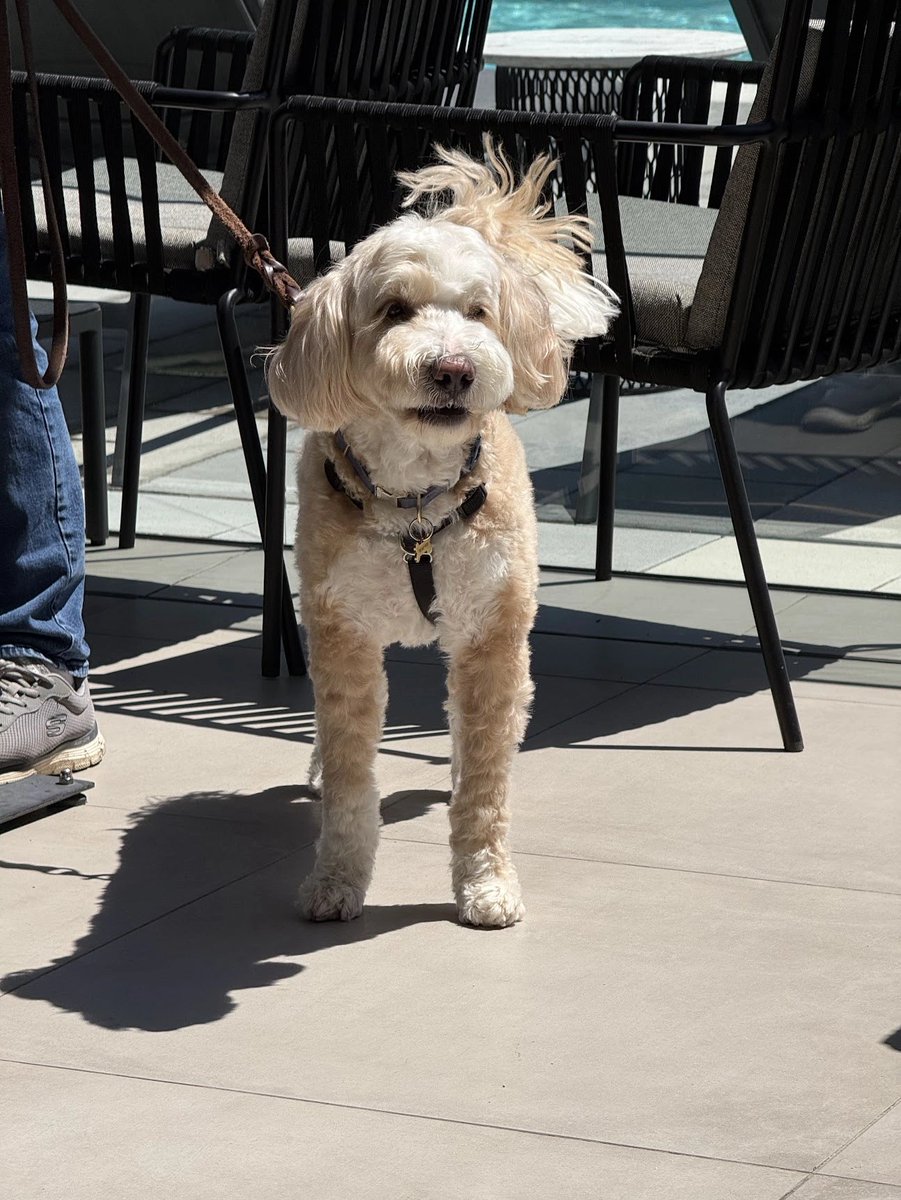
Lock identity first, then talk creativity — the "real person" feel of the official sample.
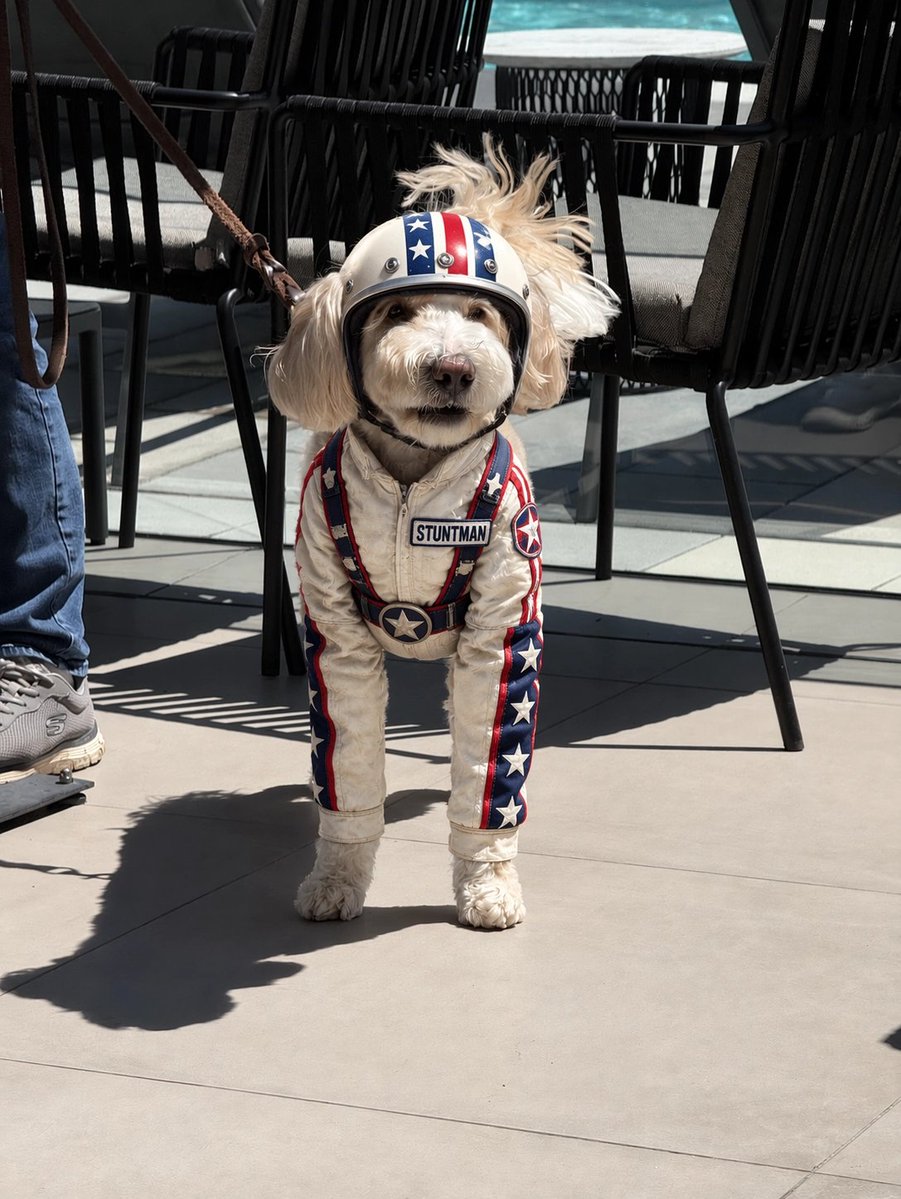
Same composition, new outfit: the suit fits, the chest text is legible, and the pose barely moves.
How to do it
- Upload 1–3 clear reference images
- Hard-code "identity lock" in the first sentence
- Change only clothing / setting / props — no more than 3 variables per round
- If it drifts, roll back — don't keep stacking edits on a bad image
Copyable phrasing
Identity lock: same subject as the reference — facial features / fur color / body proportions unchanged.
Change only: outfit → vintage stunt suit + helmet, with clear English text "STUNTMAN" on the chest;
Keep setting and pose as close as possible.
Forbidden: face swap, cosmetic-surgery look, inventing a new subject, over-smoothing.
For portraits, swap "subject" for "the same person" and the outfit for your brief.
Playbook 03 · Templates: One Skeleton, Only the Headline Changes
Most marketing images are "skeleton fixed, copy is the variable." Templates nail down the skeleton; you fill in the campaign brief instead of writing a prompt from scratch every time.
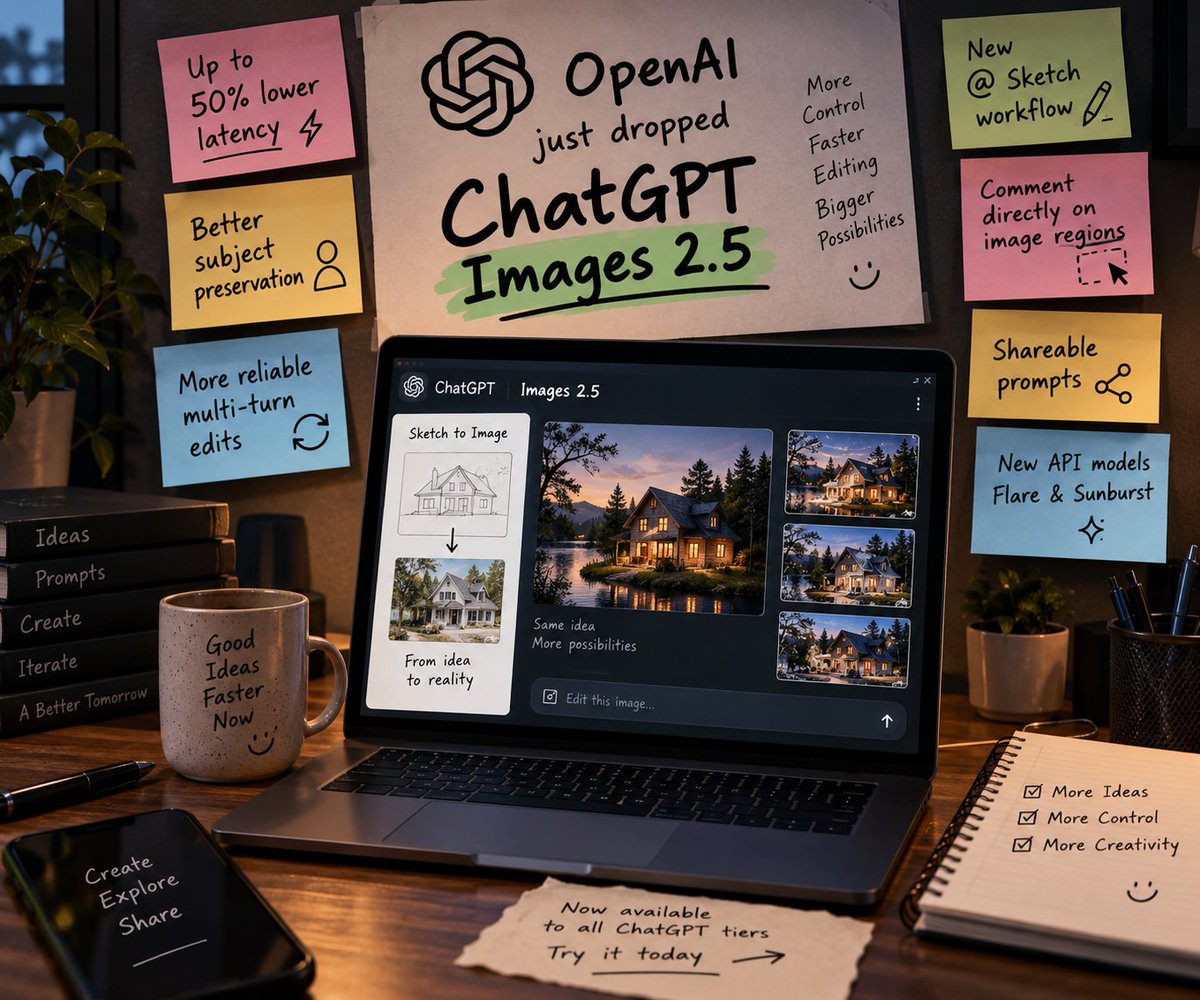
From idea to finished piece: start from a template, keep Editing — friendly for anyone shipping covers daily.
How to do it
- Images → Templates
- Pick poster / merch / product shot, etc.
- When it asks, answer clearly: audience, occasion, mood, text that must appear
- If there's an upload slot, drop in brand colors / portrait / product photo
- Edit in chat after generation, or refine in the editor
Templates are not in Work yet.
Copyable patch
Purpose: enrollment poster for an AI tools course
Headline: ChatGPT Images 2.5 Bootcamp
Subhead: From Sketch to finished piece — ship a sellable visual pack in 7 days
Style: high-contrast cyber blue + black, large title must be legible
Must keep: minimal logo placeholder in the bottom-right corner
Forbidden: fancy stickers, excessive decorative lines
Ratio: 3:4
For 30 covers a day: fix the brand color and typeface description, change only the headline variable, then use Share Prompt to store the master in your team doc.
Playbook 04 · On-Image Comments: Change What You Point At, and Little Else
If 2.5 has one genuinely share-worthy selling point, it isn't "the first image is 10% prettier." It's this:
Change what you want changed. Leave everything else alone.
Open an image fullscreen on your phone: Edit for global description, Select to brush a region, Comment to tap a spot and write "change this to…".
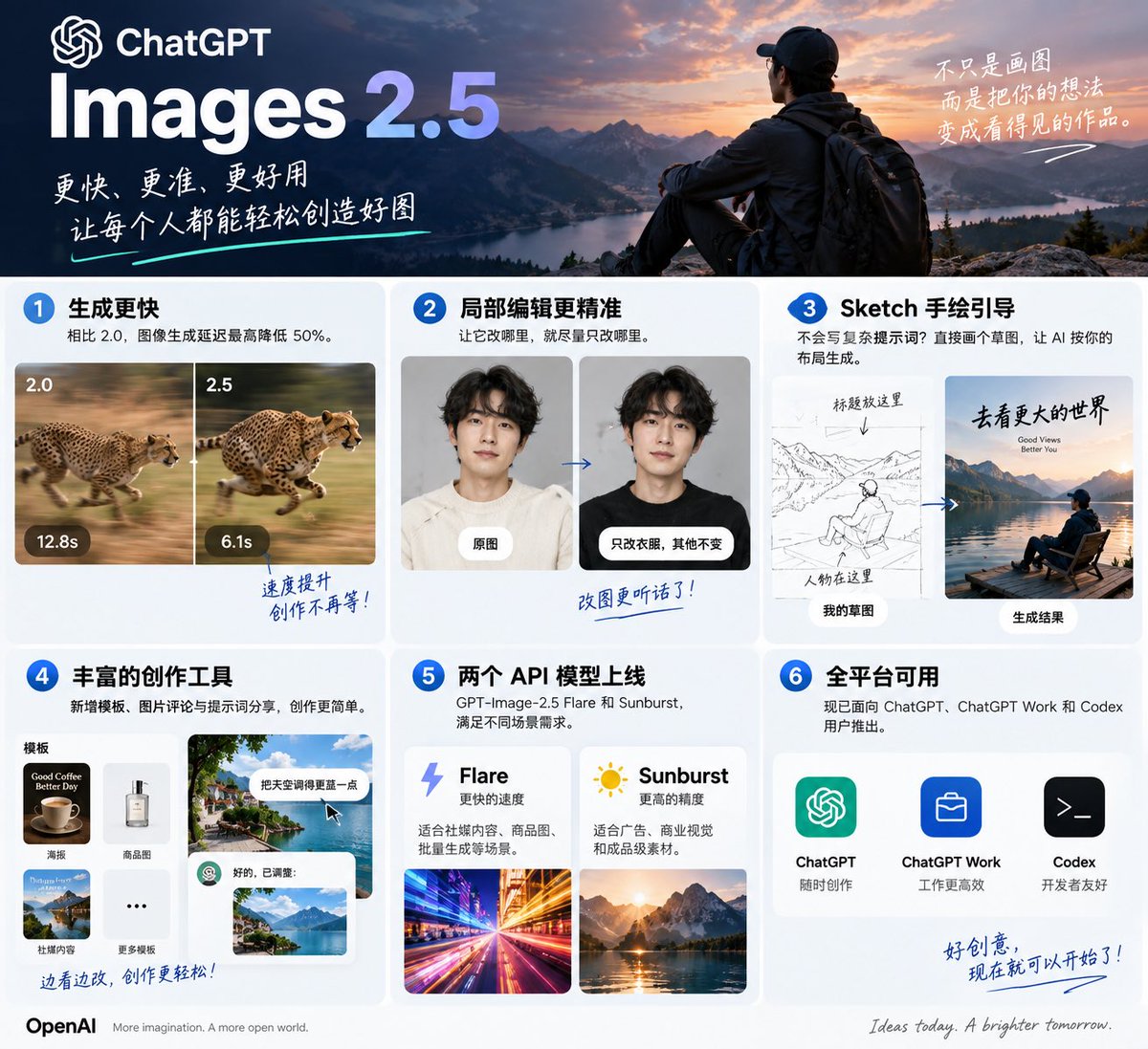
"It changes what you point at, and as little else as possible" — aimed squarely at the old pain: swap a logo and the face drifts too.
How to do it
- Open the finished image → Comment / Select
- Write explicitly "only change the marked area"
- Max 1–3 variables per round
- Treat Undo / Redo as your history
Copyable phrasing
Only change the area I marked:
1) Replace the logo on the bag with a minimal white "MAYNOR"
2) Do not change the face, hairstyle, pose, or background
3) Keep the original light direction and color temperature
Continue from this same image; do not recompose.
Only increase realistic skin pores and remove the plastic look; slightly stronger background blur.
Multi-round order: composition → clothing & props → lighting & color → text & logo → (optional) transparent background. Treat each edit as a budget of "3 variables max" — if you exceed it, split it into the next round. That's discipline, not a model limitation.
Four rounds fixing the same spot and it keeps getting dirtier? Start a new branch. Cutting your losses beats grinding it out.
Official caveat: selections are not perfectly precise — take small steps over multiple rounds on complex structures.
Playbook 05 · The Impossible Prompt: Burger + Clock Stress Test
The format review content loves most: the same prompt, head to head. Complex physics, legible text, analog clocks — exactly where older models love to fall over.
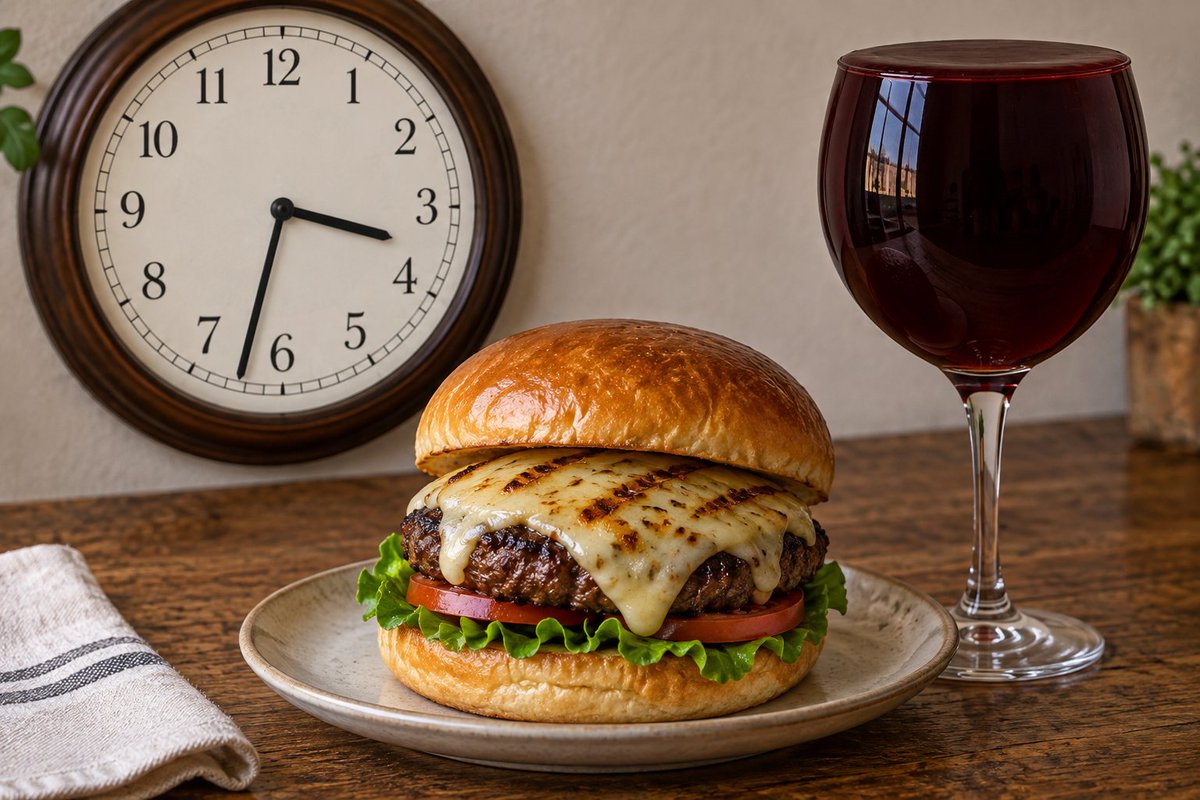
Clock digits in order, hands, and food materials in one frame — a textbook hard prompt.
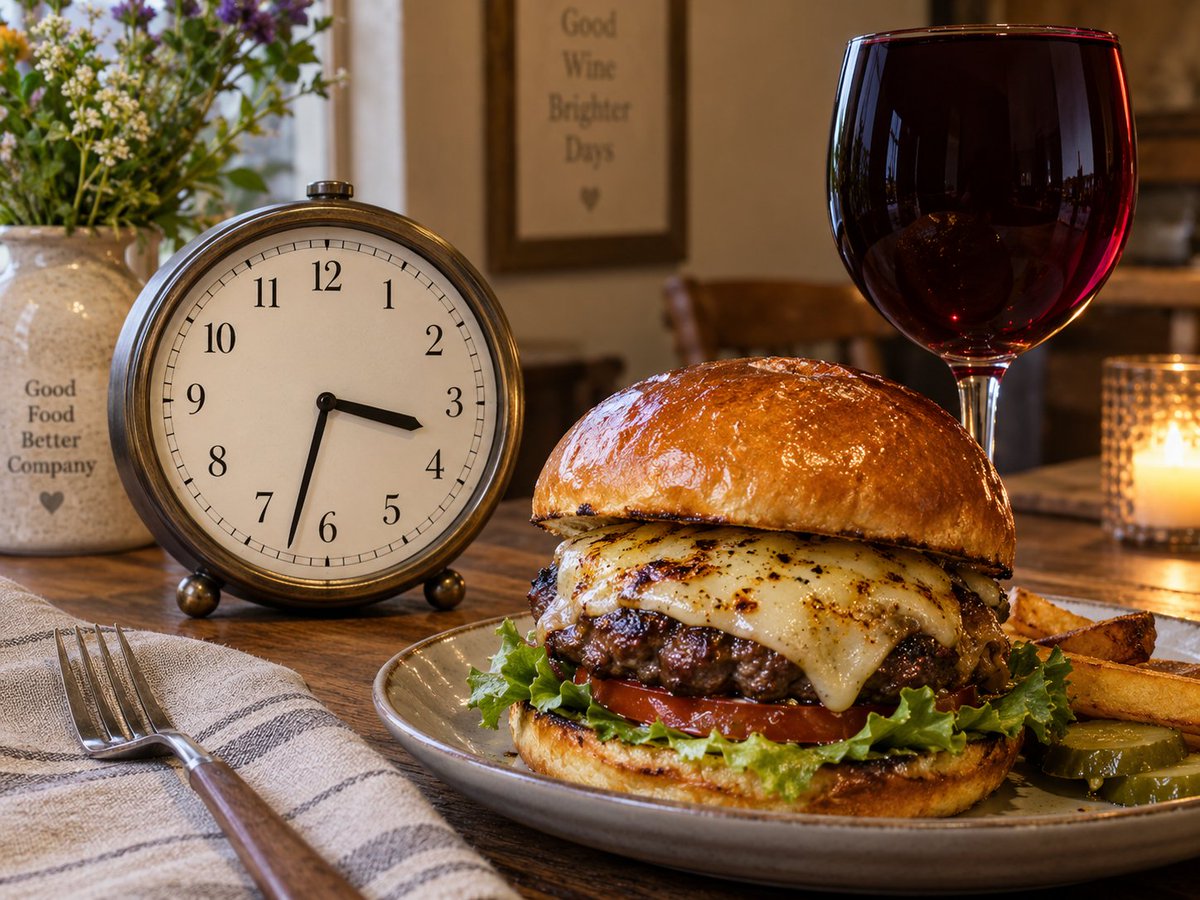
Re-test with a new composition: signage text + alarm clock + meal — see whether the details all hold together.
How to do it
- Lock the ratio; state the model / tier
- Generate one in ChatGPT 2.5; if you have API access, also run Flare / Sunburst
- When you publish, label parameters honestly — don't quietly downgrade to fake a win
Copyable stress-test prompt
Photorealistic food still life on a wooden table:
Foreground: a multi-layer cheeseburger with visible cheese pull, next to a large glass of red wine;
Background: an analog wall clock with digits 1–12 correct, hands pointing at roughly 3:32;
Shallow depth of field, warm side light, realistic glass highlights, all text sharp and correct.
Forbidden: scrambled digits, melted clock hands, plastic-looking food.
Playbook 06 · Photoreal Enough to Tremble: Social-Ready Portraits
2.5 responds more to material and light. Don't stack ten artist names: specify focal length, camera position, light type, medium, and pick just one main style.
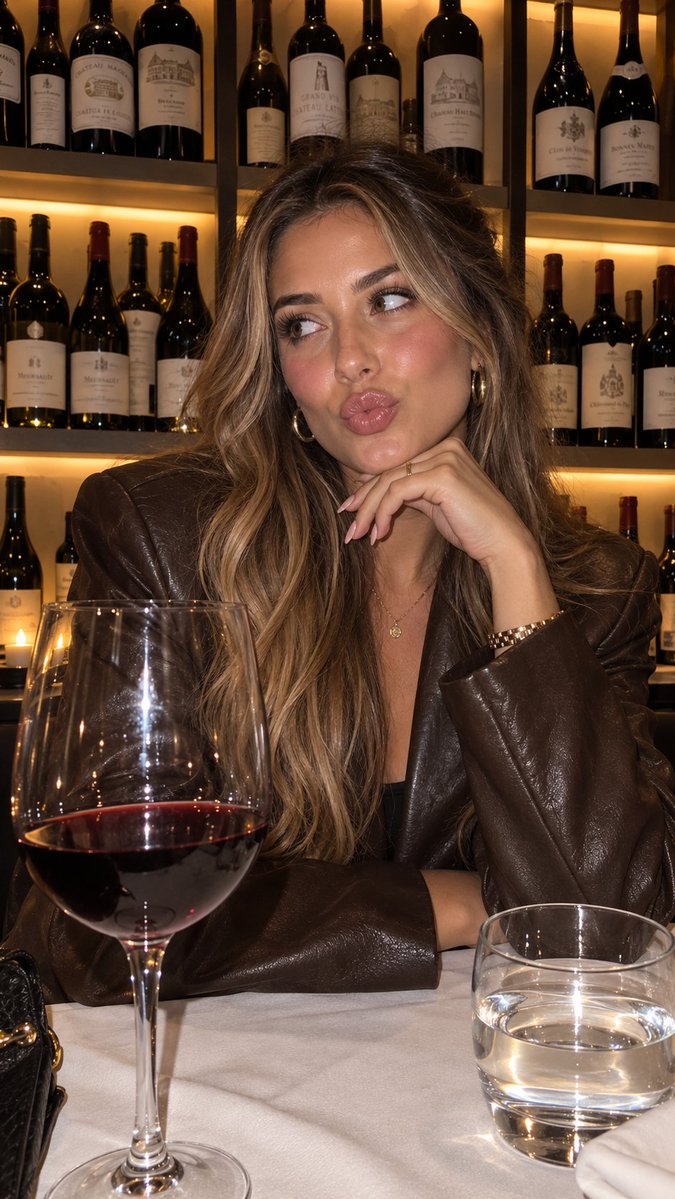
Leather texture, wine-glass highlights, hair strands and skin tone — use light and material descriptions to push back the "AI plastic" look.
How to do it
- Set scene and mood first, then the lens
- State "keep pores / no beauty-filter smoothing" explicitly
- If you need text, do a separate round that only changes the text
Copyable prompt
Ultra-realistic social portrait, shallow depth of field:
Subject: long-haired woman, dark leather jacket, chin resting on hand, restrained playful expression;
Scene: dim wine-cellar restaurant, warm light from the bottle shelves behind;
Foreground: blurred highlights on a wine glass and a water glass;
Lens: 50mm, warm front-side light + slight rim light;
Keep skin pores; no plastic smoothing; ratio 3:4.
Playbook 07 · 2.0 vs 2.5: Same Prompt, Side by Side
Don't just say "it's sharper." Put the same hard prompt side by side and let readers pick a side. The community commonly runs GPT Image 2 High 4K vs 2.5 Sunburst High 4K — when you re-test, state the platform and tier.
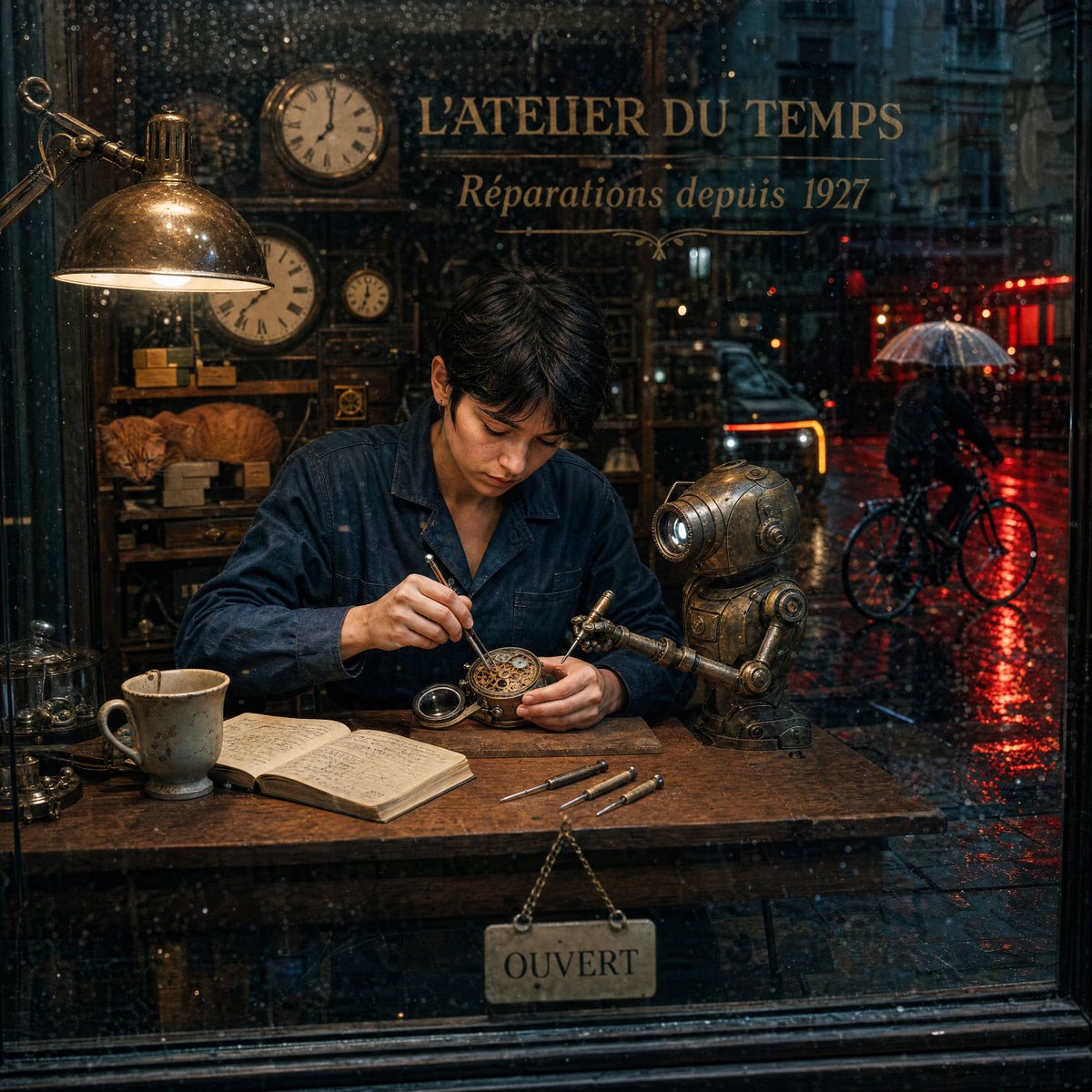
Left side: rainy-night clock shop, human-robot collaboration, glass lettering — watch the text and reflections.
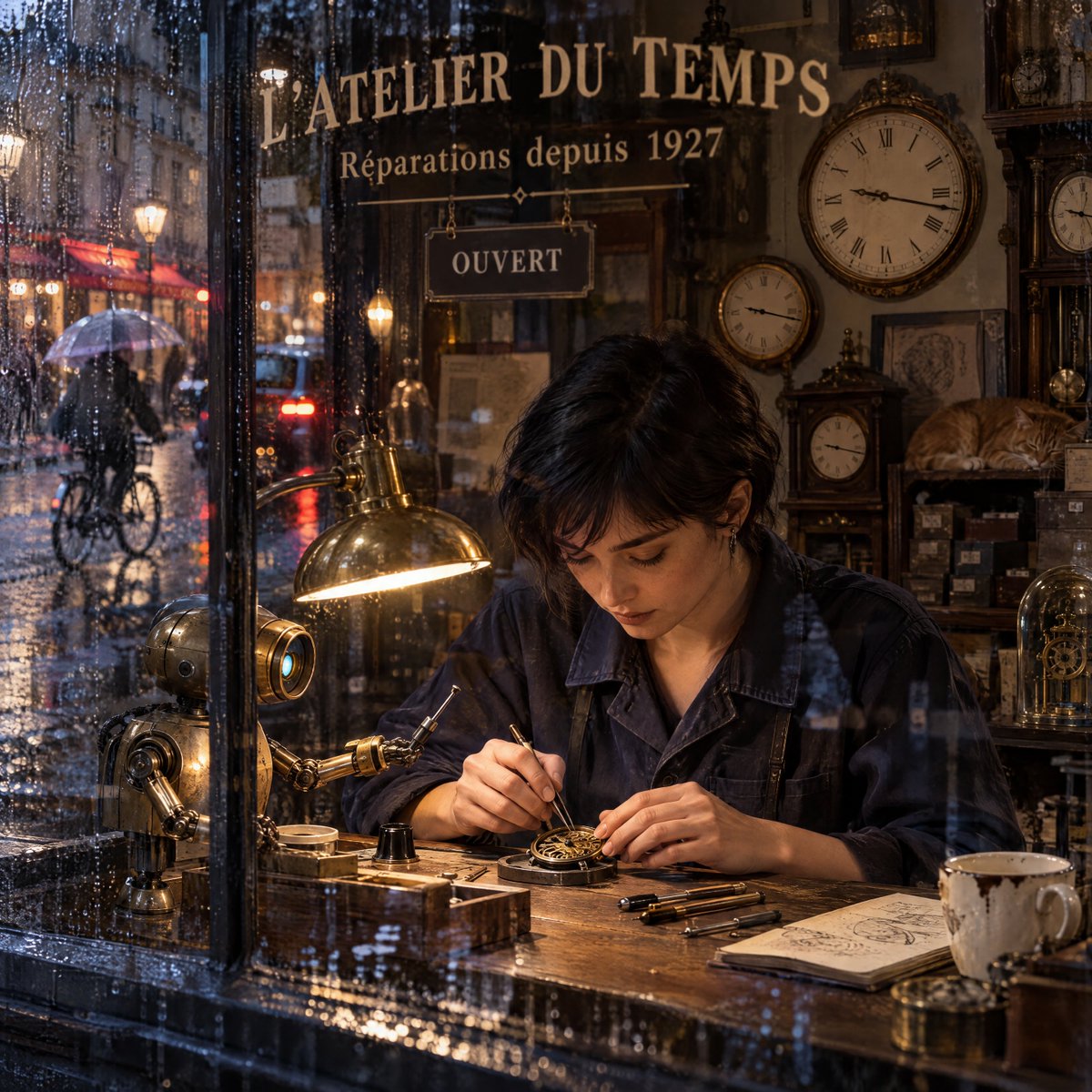
Right side: detail, window lettering, raindrops and a cat — two panes side by side beat a thousand words of parameters.
How to do it
- Lock the prompt, ratio, and reference images (if any)
- Left 2.0 / right 2.5 (or Flare / Sunburst)
- Title it plainly: "Same prompt — which side are you on?"
Looking through a rainy-night storefront into a watch repair shop: a female watchmaker and a small brass robot repairing a movement together;
Legible gold lettering on the glass: "L'ATELIER DU TEMPS"; warm desk lamp inside, cool-toned car lights blurred outside;
An orange cat sleeping on a shelf; cinematic realism, sharp detail.
Playbook 08 · Finish With Sunburst + Share the Prompt
Don't burn Sunburst on daily output. Split the flow:
- Flare: composition exploration, batch covers, the default product pipeline
- Sunburst: ad finals, complex text, demanding consistency
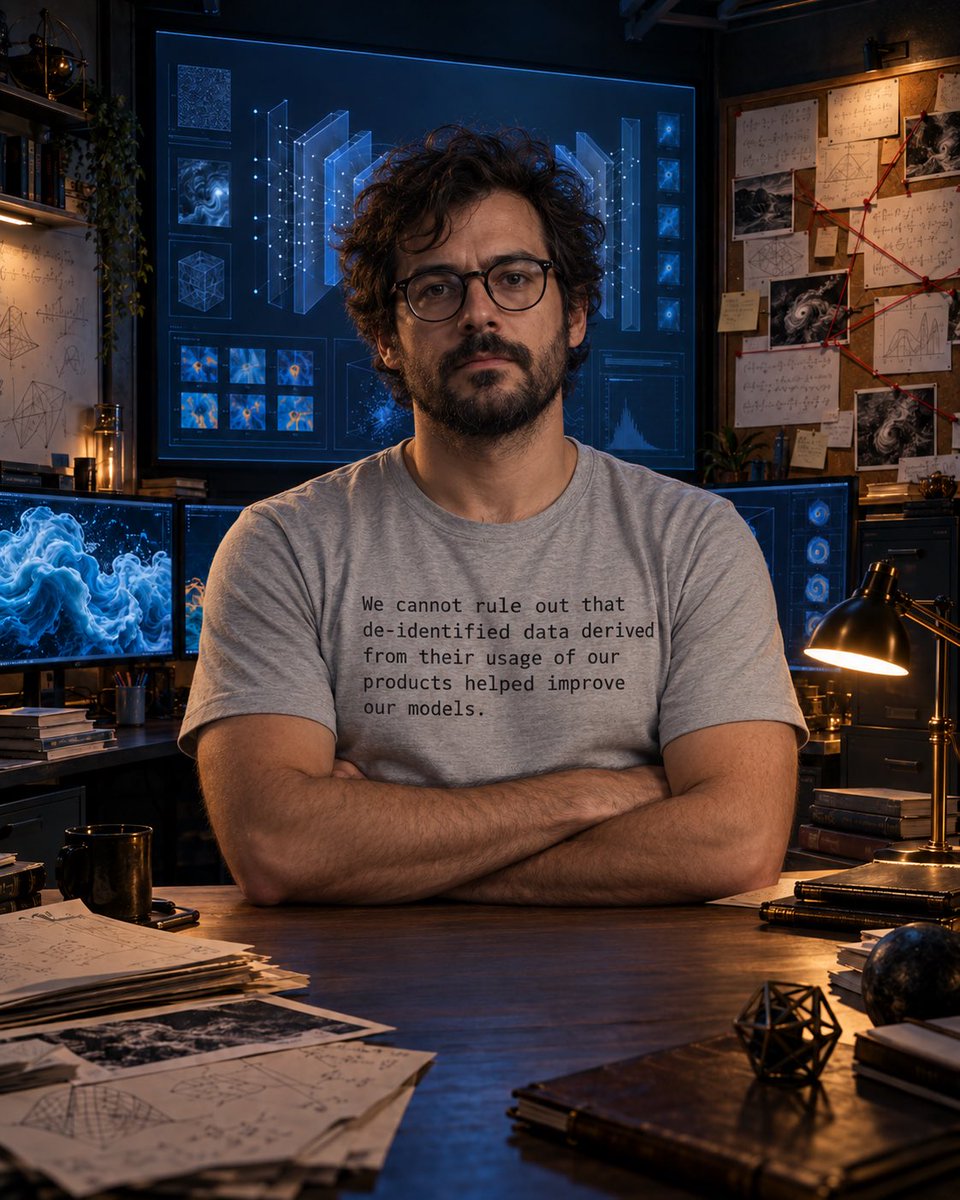
A complex scene where even a long sentence on fabric folds stays readable — that final-pass feel is what Sunburst is for.
On mobile: Share → Prompt template → Copy link. Great for team standards, reproducible templates, or handing a client a "prompt pack with tunable parameters." Strip confidential info and sensitive faces before sharing.
Copyable routing script
Plan A (fast): Flare generates 8 concepts, pick 2 to refine → social calendar
Plan B (safe): Flare locks composition + Sunburst produces the final → PDP hero visual
Plan C (aggressive): Sketch sets structure → Templates drafts → Comment x3 → Sunburst finishes
Prompt Picks (few, but sharp)
The structural formula is enough:
[subject] + [action/emotion] + [environment] + [lens] + [light] + [material] + [must keep] + [forbidden] + [ratio]
1 · E-commerce white-background hero
E-commerce hero on white, 1:1:
Product centered, bottle body and label fully visible;
Soft studio light, slight drop shadow;
Label text sharp and correct;
No prop clutter, no hand model stealing focus.
2 · Vertical social cover
Vertical social cover, 3:4:
Huge Chinese headline "" — must stay readable even as a thumbnail;
Background: [solid color / blurred lifestyle scene];
Subject occupies ~60% of the frame;
Bright high-contrast style, minimal text;
Leave the bottom-right 10% as safe area for platform UI.
3 · Transparent-background sticker
Generate a character sticker with transparent background:
Clean lines, uniform outline;
Expression: [];
Suitable for sticker packs or merch printing;
No grounding shadow, no solid backing.
4 · Identity-locked scene swap
Identity lock: same person as the reference — facial proportions, skin tone, hairstyle, apparent age unchanged.
Change only: outfit → []; setting → []; expression may be tuned to [].
Keep: original face shape and moles / distinguishing marks.
Forbidden: face swap, cosmetic-surgery look, over-smoothing, inventing another person.
5 · Short editing phrases (often better than long prompts)
- "Only change …, keep everything else pixel-identical"
- "Continue from this same image; don't recompose"
- "Change the text to Chinese '', tighter letter-spacing, no typos"
- "Remove the extra fingers; fix the hand structure"
- "Sharper logo edges; no softness"
Write negatives as verifiable prohibitions — don't stack a hundred low quality tags.
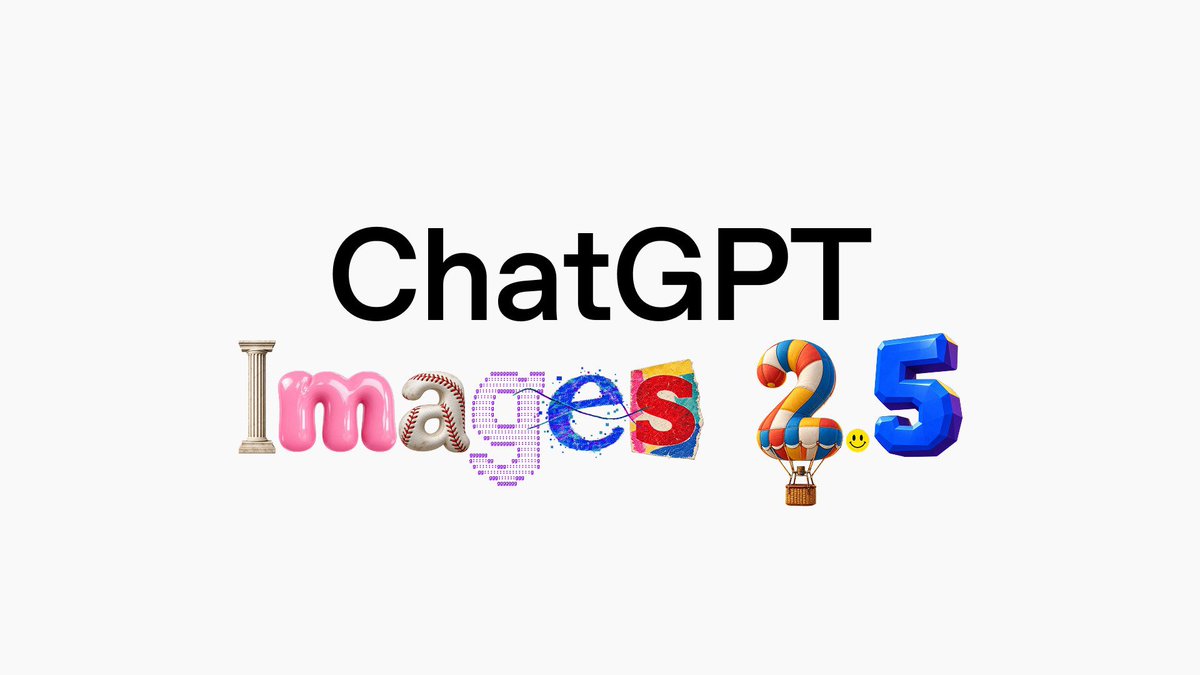
Marble, baseball, brush stroke, hot air balloon — naming materials concretely beats shouting "high quality."
Flare vs Sunburst: How to Choose
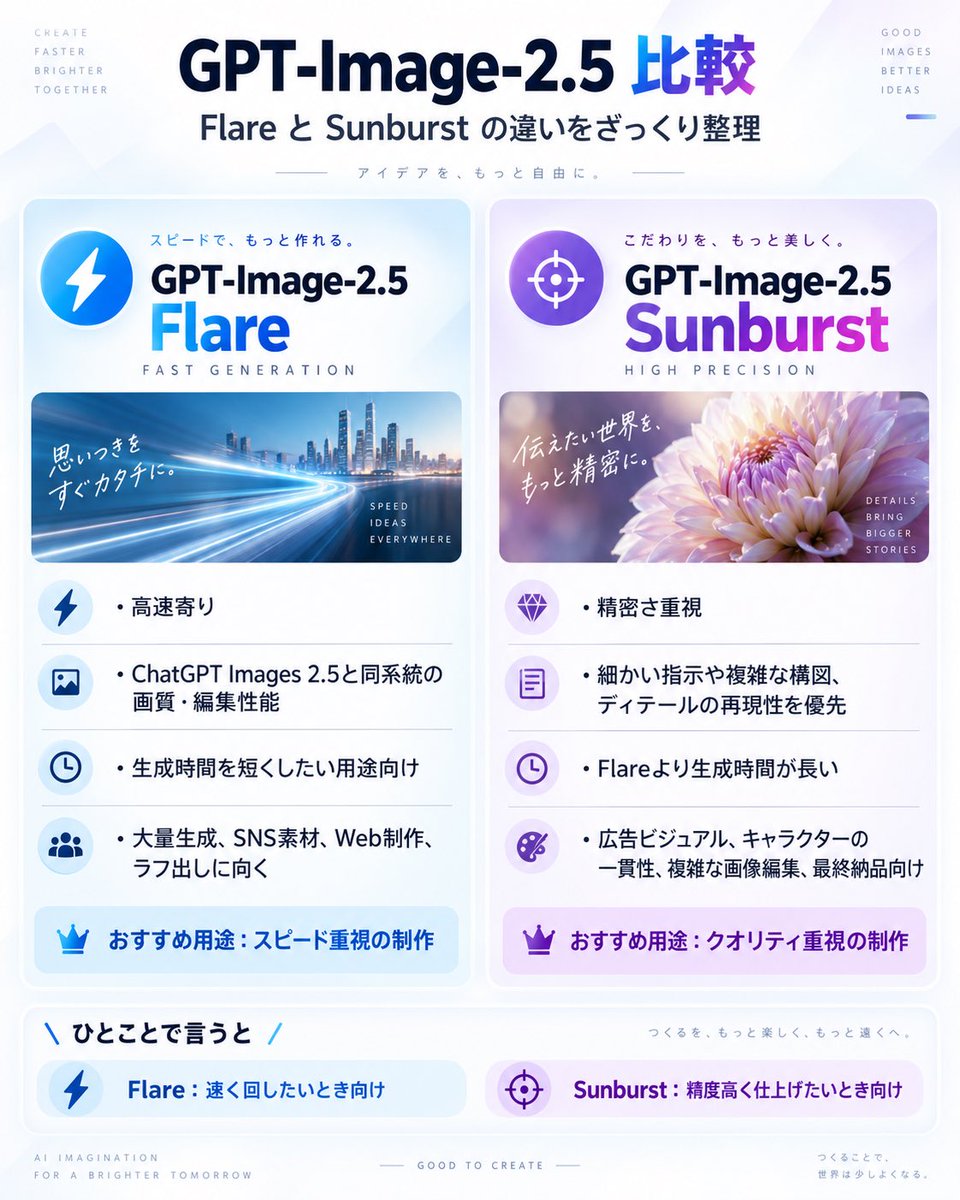
Use Flare for fast iteration; use Sunburst for high-precision finishing.
| Flare | Sunburst | |
|---|---|---|
| Positioning | Speed / general | Precision / hard prompts |
| Good for | Batches, daily output, high concurrency, drafts | Ad finals, complex text, character consistency |
| Cost | Faster | Slower generations |
| Mnemonic | Daily workhorse | Finishing pass |
The community mentions tiers like xhigh / max — go by the enums actually visible in your account's API docs at the time; third-party sites sometimes list a name before the capability exists.
In practice: let Flare produce 4, then send the keeper to Sunburst. Default products to Flare and route "refine" actions to Sunburst — cheapest and most honest.
Pitfall FAQ (short)
Q: Why don't I have Sketch? It's a rolling rollout. Confirm your app is updated; Sketch lives in the phone input box via @ — don't hunt for a canvas on the web.
Q: Can't find Templates in Work? Expected. Officially: Templates are not yet available in Work mode.
Q: Do I get more quota because of 2.5? Officially: existing image-generation limits are unchanged.
Q: My selection still bleeds into the surroundings? Selections aren't perfectly precise. Mark smaller, run more rounds, and write "only change the marked area."
Q: Can I still use the DALL·E GPT? No — it's retired. Use ChatGPT Images.
Q: A third-party site says 2.5 but quality looks meh? Possibly name-only or a different tier. Compare against official ChatGPT with the same prompt.
Q: Generation is still slow? Complex prompts, Thinking, Sunburst, and peak hours all slow it down. "Up to ~50%" ≠ "always twice as fast."
Q: Can I use it in Codex? Yes. Official coverage includes Codex; the Help Center also notes you can generate and edit images in Codex.
Q: How do I delete an image from Images?
Delete the conversation that generated it (Web: title ••• → Delete; mobile: long-press the conversation title → Delete).
Four more nails: don't mix up model names (2.0 vs 2.5); don't cram 8 mutually exclusive edits into one round; clear rights before commercial use of faces or trademarks; no Snake in Work.
Wrapping Up
The real dividend isn't "the first image is 10% prettier." It's this:
On the same production line, the cost of trial and error is cut in half.
The six-piece toolkit: Sketch sets structure, Templates draft, Comment refines, Prompt Share multiplies, Flare runs volume, Sunburst finishes.
Tonight's smallest action: open ChatGPT on your phone, @ → Sketch, draw a lopsided cup, and write "turn it into a ceramic product studio shot, white background, label says MAYNOR." Five minutes later you'll know it — 2.5's progress is a feel in your hands, not ad copy.
We're the MaynorAI team — sharing what we learn about AI programming, shipping AI SaaS tools overseas, and building one-person teams. Tutorials that actually land, tools that actually go live; updates like Images 2.5 that boost output immediately get turned into copyable workflows, not news reposts.
- GPT-6 Astra guide for China: https://xianyu110.github.io/GPT6/
- Awesome GPT-6 Astra gallery: https://xianyu110.github.io/awesome-gpt-6-astra/
- Codex China site: https://codex.maynorai.top/
- Playable site collection: https://gpt-6-astra.cc/
(Model ids / pricing / whether Templates reach Work — defer to OpenAI's live docs.)
Official entries: Introducing ChatGPT Images 2.5 · Images in ChatGPT · OpenAI announcement post